 cinemasetfree.com
Generating Wardrobe Portraits
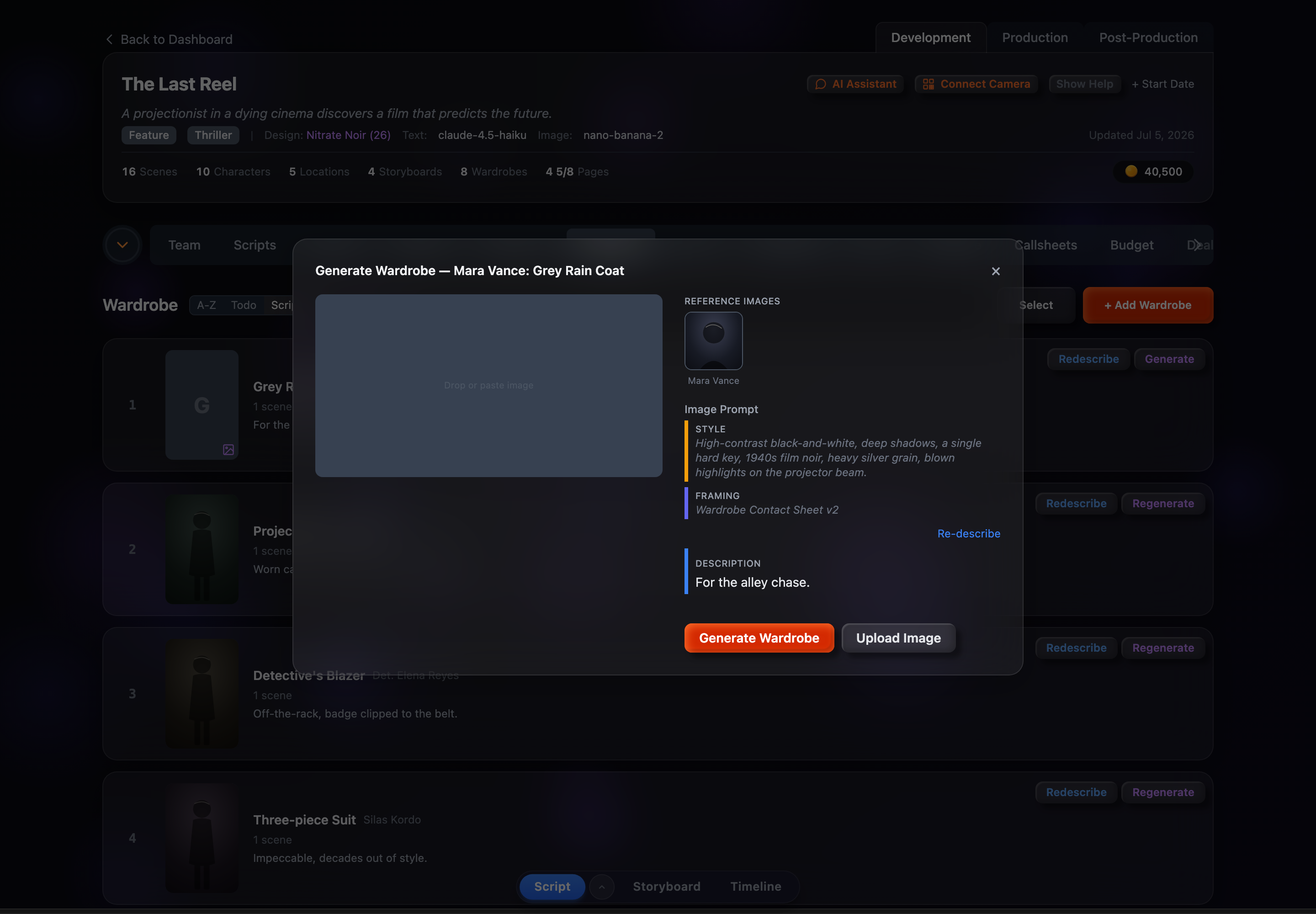
Open a wardrobe’s portrait modal to generate a tall, full-body 2:3 costume reference. The character’s existing portrait is loaded automatically as a reference image so the same face carries into every costume. Edit the prompt, pick an aspect ratio, then Generate — or upload your own image instead.
Opening the Portrait Modal
Click a wardrobe’s portrait thumbnail, or the purple Generate / Regenerate button on the row. The modal opens titled “Generate Wardrobe — [Character]: [Wardrobe Name].” The current portrait (if any) sits on the left with all of the controls on the right.
Portrait Orientation
Wardrobe portraits default to a 2:3 aspect ratio — tall, full-body costume references that show the character head-to-toe. That differs from character portraits (typically square) and location portraits (landscape).
Character Reference Image
This is what makes wardrobe portraits special. When the modal opens, the app pulls the character’s portrait from the active production design and shows it in a Reference Images strip (a small thumbnail labelled with the character’s name). That image is sent along with the generation request so the new costume portrait keeps the same likeness.
If the character has no portrait yet, no reference image is attached — so generating the character’s portrait first (in the Characters tab) gives you the most consistent results.
Prompt Controls
The Image Prompt is a segmented editor. Two segments are fixed context and one is yours to edit:
- Style — The visual style pulled from the active production design (read-only context).
- Framing — The costume-reference framing that wraps your text, e.g. “Costume reference photograph of a character wearing: …” with a “no words, text, or lettering” guard.
- Description — The editable body: the costume itself. Type it, or use Auto-describe to fill it in.
Below the prompt, an Aspect Ratio row lets you pick from the ratios the current image model supports, defaulting to 2:3.
The image model and advanced parameters (negative prompt, seed, and so on) aren’t set inside this modal — they come from the production design’s Advanced Settings and apply to every portrait you generate.
Auto-Describe Inside the Modal
Above the description body sits an Auto-describe link (it reads Re-describe once there’s text, and Generating… while it works). It writes a costume description from the wardrobe name and character context and drops it into the prompt for you to tweak.
You don’t have to do that first, though: if a wardrobe still has no description when you hit Generate Wardrobe, the app describes it automatically and then generates the image in a single step.
Uploading an Image
Prefer to bring your own costume reference? There are three ways to upload, right in the modal:
- Upload Image button — Opens a file picker next to the Generate button.
- Drag-and-drop — Drop an image file onto the portrait area (a “Drop image here” overlay appears).
- Clipboard paste — Copy an image and press Ctrl+V / Cmd+V anywhere in the modal.
Version History
Every generated or uploaded portrait is kept as a version. Once there’s more than one, a row of numbered version thumbnails appears under the image, and left/right chevrons over the image step through them (left for older, right for newer). Click a thumbnail to jump straight to that version.
- Use this version — The save icon overlaid in the bottom-right of the image makes the version you’re viewing the active portrait.
- Model label — Above the prompt, a small note shows which model produced the version you’re looking at.
Cost Estimate
A short estimate line under the Generate Wardrobe button previews the credits and time the run will take, based on the current image model (and the describe step, when a description still needs writing). Generation is blocked with a prompt to buy credits if your balance is empty.