 cinemasetfree.com
Browsing & Sorting Wardrobes
Each row shows a 2:3 costume thumbnail, name, character tag, an optional Default badge, scene count, description, and action buttons. Sort with the toolbar’s Script, A-Z, and Todo/Done buttons, and toggle Show Deleted to bring back soft-deleted costumes.
The Wardrobe List
The tab renders every costume as a stacked card. On wider screens the thumbnail sits to the left of the text; on mobile it stacks on top. The toolbar above the list carries the sort buttons, Select, and + Add Wardrobe.
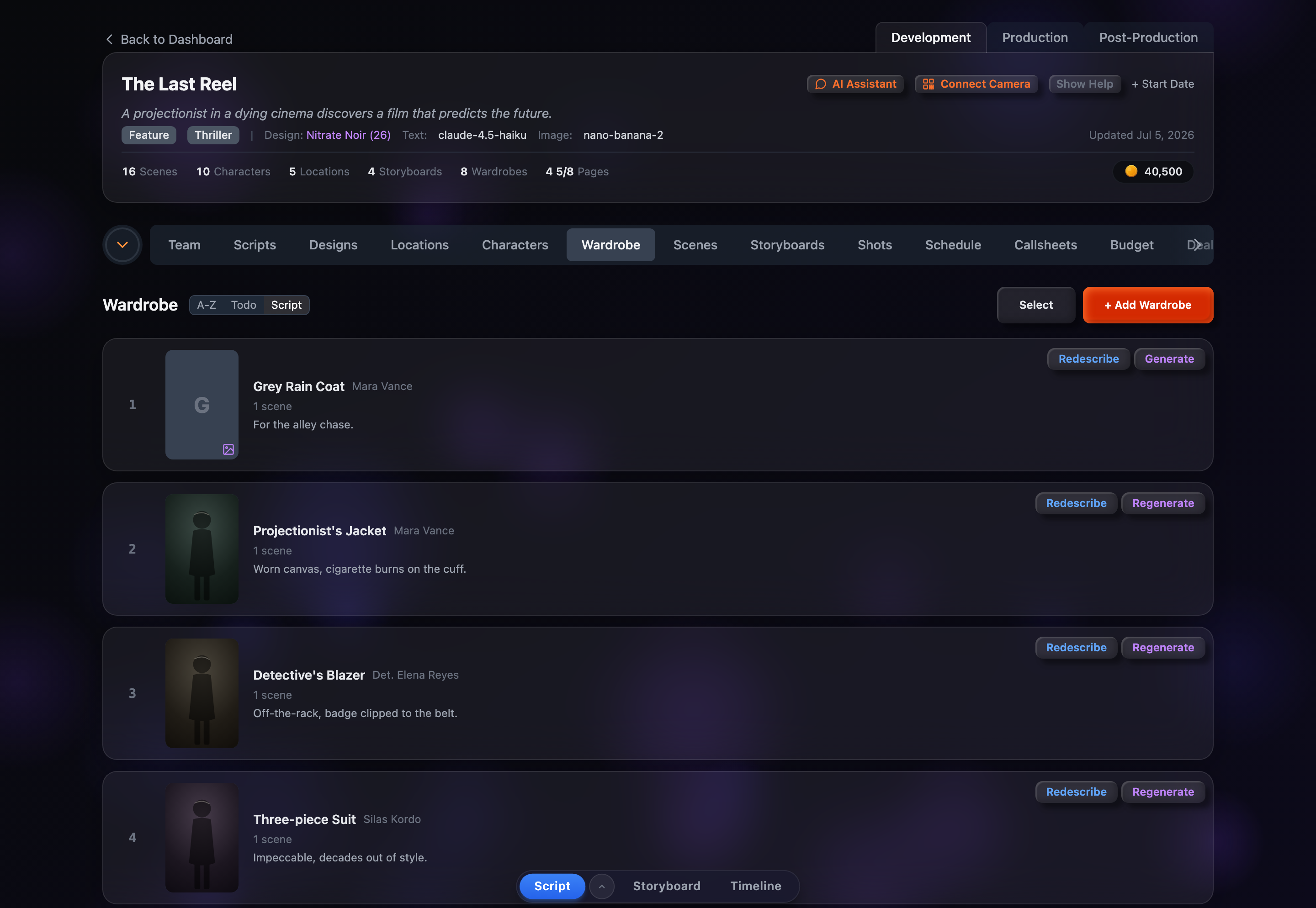
Row Anatomy
Each wardrobe row contains:
- Row number — A sequential index in the current sort order. Clicking it drops you straight into select mode with that row checked.
- Portrait thumbnail — A 2:3 costume reference (about 80×120 on desktop, full-width on mobile). With no portrait yet it shows the wardrobe’s initial and a small purple image hint. Clicking it opens the portrait modal.
- Wardrobe name — Click to rename inline.
- Character tag — A small gray label showing which character owns the costume.
- Default badge — A green “Default” pill on the character’s default wardrobe.
- Scene count — “N scenes”, shown only when the costume is used in at least one scene.
- Description — Click to edit, or click the placeholder to add one.
- Describe button (blue) — Auto-write a costume description.
- Generate button (purple) — Open the portrait modal to create a costume reference.
Deleted rows are dimmed with the name struck through, show a red “Deleted” badge and a green Restore button, and hide the Describe and Generate buttons.
Sort Options
The sort toolbar sits next to the “Wardrobe” heading on desktop; on mobile the same choices live under the Options dropdown. Your choice is remembered between visits.
Script (default)
Grouped by each character’s first scene appearance, then alphabetically by wardrobe name within a character.
A-Z
Alphabetical by wardrobe name. Click again to flip it to Z-A.
Todo / Done
Todo floats the least-finished costumes (missing a description or portrait) to the top; click again for Done, which surfaces the fully-finished ones first.
Show / Hide Deleted
The Show Deleted button appears in the toolbar only when the project actually has soft-deleted wardrobes. Toggle it on to swap the list for the deleted ones (the button highlights and reads Hide Deleted); each deleted row offers a green Restore button to bring the costume back. On mobile the same toggle is inside the Options dropdown.