 cinemasetfree.com
Bulk Operations
Enter select mode to check several wardrobes at once, then use the sticky toolbar at the top of the list to delete, auto-describe, or generate portraits for the whole selection. Wardrobes have no Combine action — each one is tied to a single character.
Entering Select Mode
Click Select in the Wardrobe tab header (or Select under the mobile Options dropdown) to turn on select mode. Each row’s number turns into a checkbox with an animated border pulse; click a row’s checkbox to toggle it. Click Cancel to leave select mode and clear the selection.
The Bulk Toolbar
As soon as select mode is on, a toolbar sticks to the top of the list. Its action buttons stay disabled until you’ve checked at least one wardrobe, and each shows a live count:
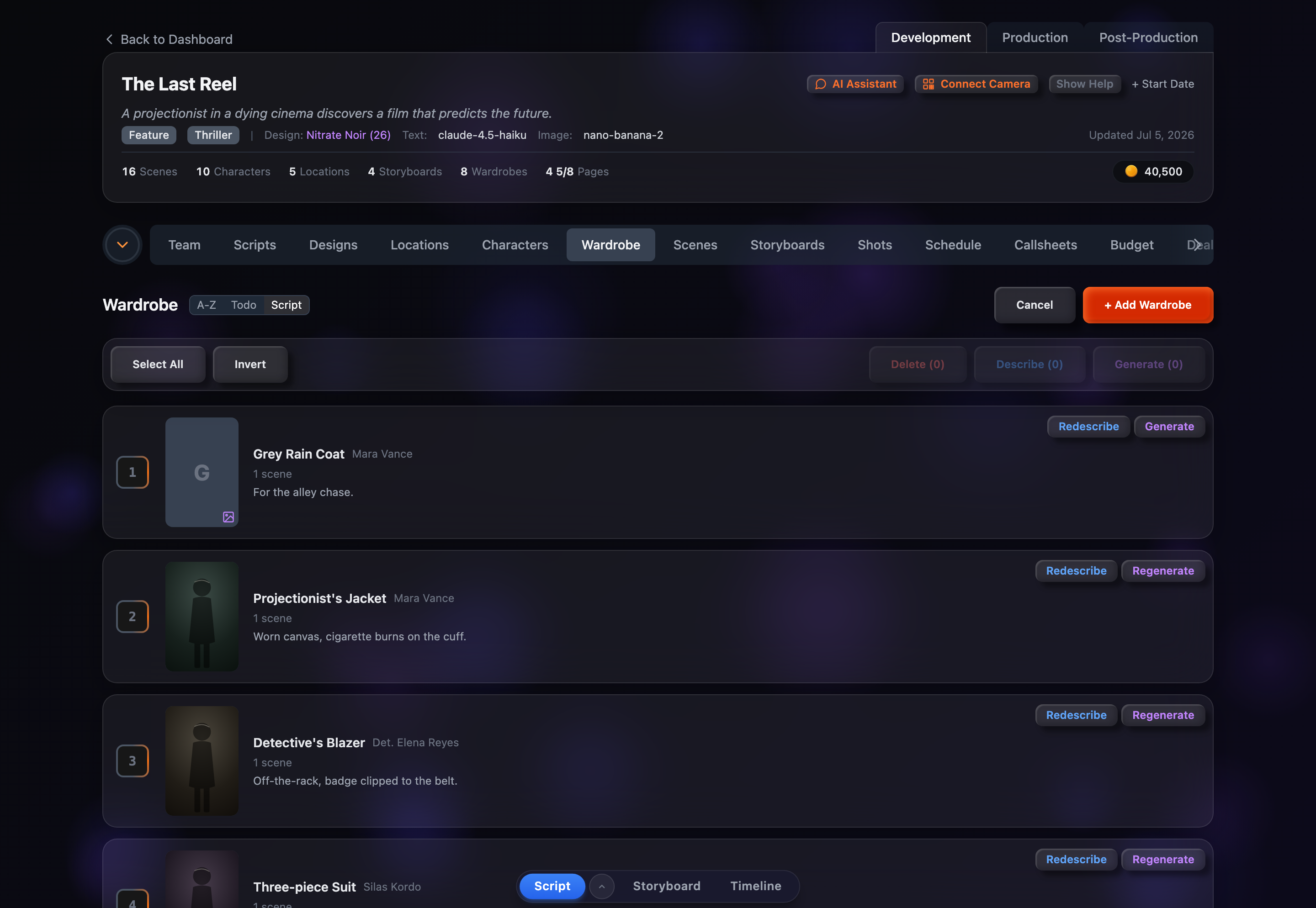
Select All / Deselect
Check every wardrobe in the list at once; once everything is checked the button flips to Deselect.
Invert
Flip the selection — checked rows become unchecked and vice versa.
Delete (count)
Soft-delete every selected wardrobe. A confirmation dialog appears before anything is removed, and deleted costumes can be restored later from Show Deleted.
Describe (count)
Auto-write descriptions for the selected wardrobes that don’t already have one. The button counts up its progress as “Describing X/Y…” while it works through the batch.
Generate (count)
Generate full-body costume reference portraits for the selected wardrobes. Disabled while any portrait is already generating.
No Combine Operation
Unlike characters and locations, wardrobes cannot be combined. Each wardrobe belongs to a single character, so merging costumes across characters wouldn’t make sense — the bulk toolbar simply omits that button.
Bulk Portrait Generation
Bulk generation applies the design’s current model and settings to all selected wardrobes at once. Each costume still uses its own description as the prompt, and its own character’s portrait is loaded automatically as a reference — so every generated portrait keeps consistency with the right character. Only active (non-deleted) wardrobes in the selection are generated.