 cinemasetfree.com
Importing a Script
Click Import Script, then drop a Fountain, Final Draft, PDF, or text file onto the modal, browse for it, or paste your screenplay with ⌘V. CSF parses it on the spot and moves you to the review step.
The Import Script Button
At the top-right of the Scripts tab, next to New Blank, you'll find the orange Import Script button. Clicking it opens the import modal, where you provide your screenplay content by file or by pasting.
Three Ways to Import
The modal shows a single dashed drop zone that accepts your script three ways:
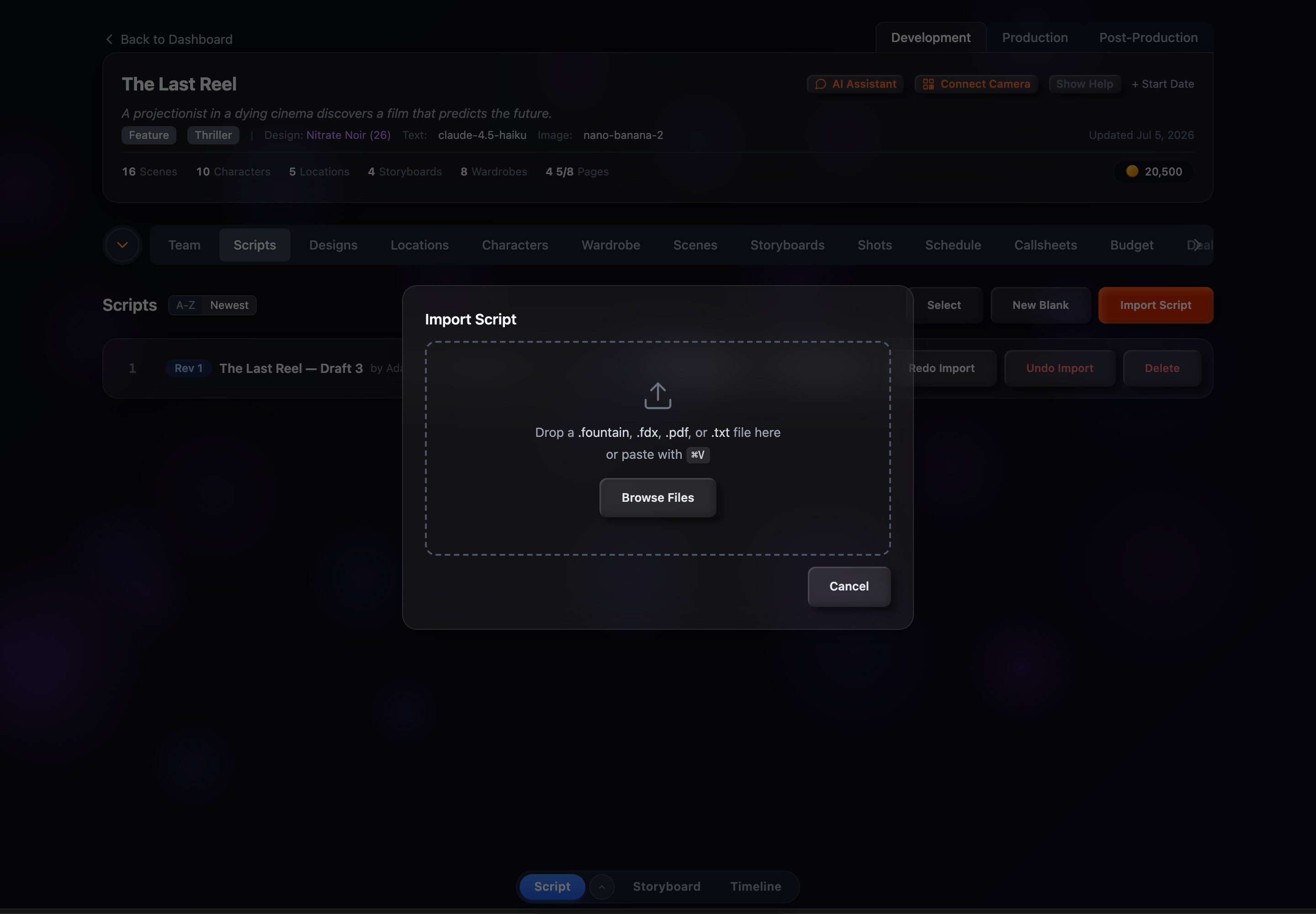
Browse Files
Click the Browse Files button inside the drop zone to open a file picker and choose your script.
Drag & Drop
Drag a file from your computer onto the drop zone — it highlights while you're hovering a file over it.
Paste Text
With the drop zone focused, paste your screenplay with ⌘V — there's no separate text tab, you paste right onto the zone.
Supported Formats
.fountain
The native Fountain plain-text screenplay format. This is the recommended format — no conversion needed.
.txt
Plain-text files written in Fountain syntax. Handled exactly like .fountain files — just a different extension.
.fdx (Final Draft)
Final Draft XML files are automatically converted to Fountain on upload. The conversion preserves scene headings, character names, dialogue, and action lines.
.pdf
PDF screenplays are extracted page-by-page and reformatted into Fountain, cleaning up page numbers, (CONT'D) markers, and similar artifacts. Works best with PDFs exported from screenwriting software.
The legacy .fdr Final Draft format isn't supported directly — if you drop one, CSF asks you to re-save it as .fdx from Final Draft first.
What Happens Next
Once a file loads, the drop zone shows the source name and a rough pages · lines count, with a Clear link if you picked the wrong file. CSF then parses the Fountain text right away and, when it finds scene headings, moves you to the review step to choose which scenes, characters, and locations to import.
If no scene headings are found, CSF shows a toast asking you to check that your script uses Fountain format (for example INT. LOCATION - DAY) and leaves you on the input step so you can try another file.