 cinemasetfree.com
Managing Your Team
TL;DR — The roster lists every crew entry, quick-added or invite-linked. Edit anyone’s contact details, remove people, use Select mode to bulk-delete or export a contact sheet, track pending invitations, and manage connected mobile devices — all from the Team tab.
The Member List
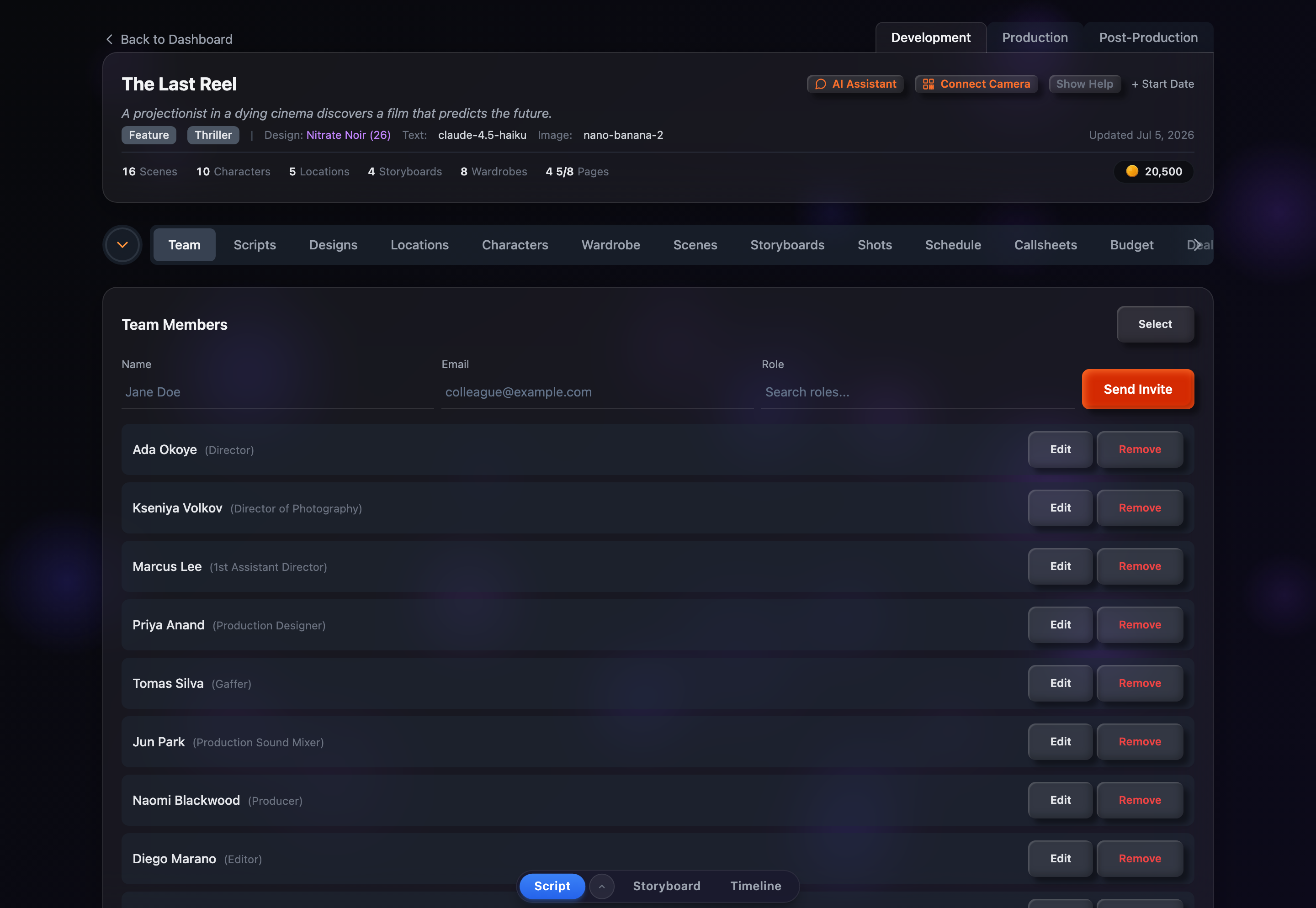
The Team tab shows all crew in a single list. Each entry displays:
- Name — the person’s name (for an unnamed quick-add, this is just the position title until you edit it).
- Role — shown in parentheses next to the name (e.g., Director, Gaffer).
- Phone — listed beneath the name once you’ve added one.
- (placeholder) — an italic tag on any entry that has no email yet, so bare quick-adds are easy to spot.
Every entry has Edit and Remove buttons, and a Select button in the panel header switches on bulk actions.
Editing Contact Info
Click Edit on any member to open the Edit Contact Info dialog. This is how you turn a bare quick-add placeholder into a real contact. You can set:
- Name, Phone, Email, and Address
- Department — free-text, handy for grouping
- Notes — anything you need to remember about the person
The member’s role is shown for reference but isn’t edited here. Click Save and the roster updates immediately.
Removing Members
To remove someone, click Remove next to their entry. A confirmation prompt appears to prevent accidental deletions. Removing a member:
- Deletes the team-member record from this project.
- Does not delete their user account, if they had one.
- Does not rewrite existing deal memos or budget history.
Select Mode: Bulk Delete & Export
Click Select in the panel header to enter selection mode. A toolbar appears with:
- Select All / Deselect and Invert to choose who’s included.
- Delete (n) to remove everyone selected at once, behind a confirmation prompt.
- Export (n) to download a PDF contact sheet for the selected members.
The exported PDF is titled with your project name and lays out one row per member with columns for Name, Role, Department, Phone, Email, Address, and Notes — a ready-to-share crew contact list. Click Cancel to leave selection mode.
Pending Invitations
If you’ve sent email invitations (a Pro feature), a yellow-highlighted Pending Invitations section appears beneath the roster. Each entry shows the invitee’s email, the assigned role, and how long ago it was sent. Click Revoke to cancel one before it’s accepted. Once accepted, the person disappears from here and joins your roster as a linked member. See the Inviting Collaborators guide for the full flow.
Connected Devices
When crew connect a phone or tablet to the project (for example via mobile/QR login), a Connected Devices section lists each one with the crew member’s name, the device, and when it was last seen. From here you can:
- Revoke a single device with the × button (behind a confirmation), signing it out until it reconnects.
- Use Select on the section to bulk-revoke several project devices at once.
Devices tagged Account belong to people who signed in with their own account rather than a project device link. Those can’t be revoked here — to cut off their access, remove them from the roster instead.
How Members Connect to the Rest of Your Project
Team members don’t live in isolation — they tie into other parts of the project:
Deal Memos
Each deal memo is built for a specific team member; their name and role carry into the memo, and a signature links back to their account if they have one.
Budget Line Items
The crew positions behind your members, and their per-project day rates, feed budget line items so your totals reflect the team you’ve actually assembled.
Member Count Badge
Each project card on your dashboard shows a member-count badge, giving you a quick read on team size across all your projects.