 cinemasetfree.com
Takes Overview
A take is a single recorded clip of a shot. Each one carries a shot label, a camera angle, a take number, a duration, notes, and a circled (select) flag. Takes are recorded in the Video Village and appear in the Takes tab, where the app merges the copy stored on this device with the copy in the cloud so you can review, circle, and upload them.
What Is a Take?
Each take record stores a shot label (e.g. “1A”), a camera angle (e.g. “Wide”), a take number, the clip’s duration in seconds, the timestamp it was recorded, free-text notes, and a circled flag that marks it as a select. The shot label and camera angle combine into the take’s name — shown as “1A · Wide” in the list and as “1A · Wide · Take 3” in the review modal. When a take has no shot label or angle yet, the row falls back to reading “Unknown shot”.
Where Takes Come From
You don’t create takes on this tab — they arrive from the Video Village, where you record footage against a shot. Each recording is saved to this device and shows up here automatically; the list refreshes the moment a new take is saved, so you can walk over from the monitor and it’s already there. Until you record something, the tab shows the empty message “No recorded takes yet. Record from Video Village to see takes here.”
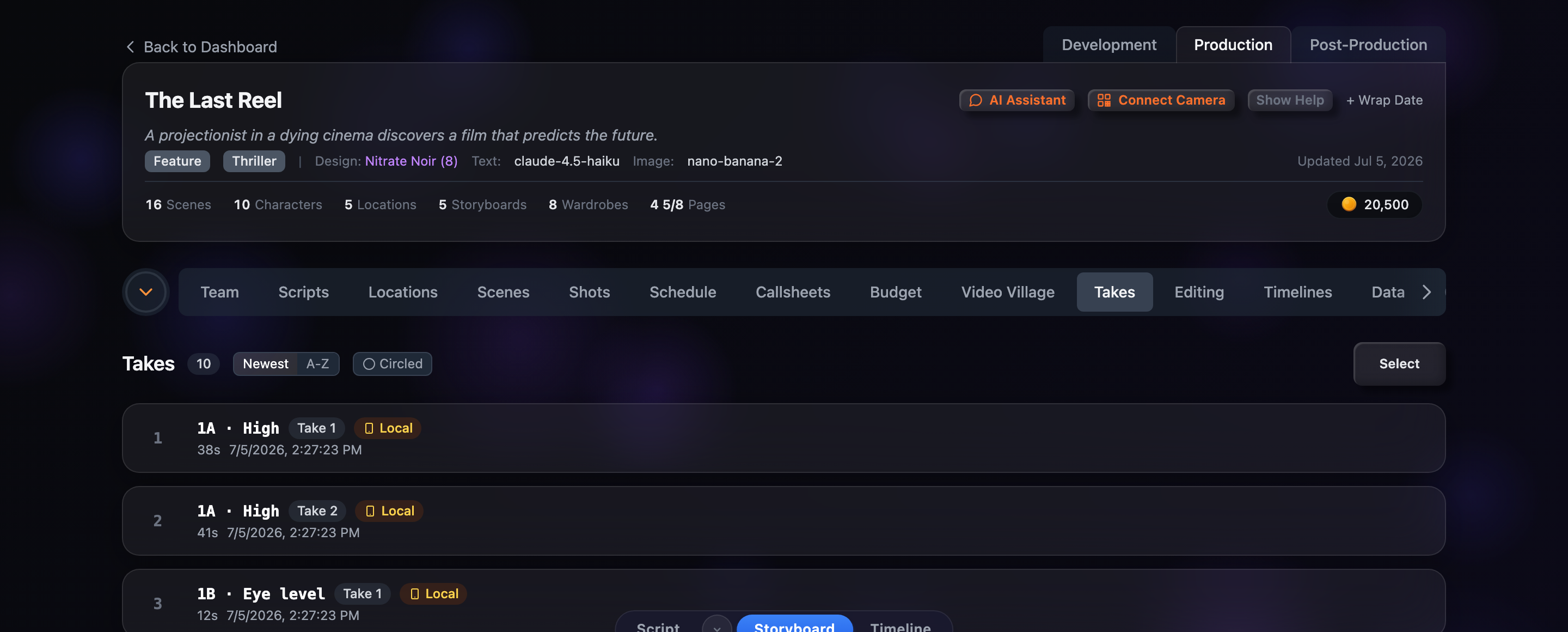
Local vs Cloud
Every take exists in one or both of two places, and each row tells you which with a small badge:
Local Local
The recording lives in this browser on this device. It plays back instantly, but it isn’t backed up or visible to teammates until you upload it.
Cloud Cloud
The take has been uploaded and is stored online. Its metadata — label, notes, and circled state — syncs across devices and teammates. A take can show both badges when it’s on this device and in the cloud.
The tab merges the two lists for you: a local recording and its uploaded copy are matched by shot label and take number (or by id) and shown as one row, so you never see the same take twice.
The Takes Tab
The toolbar at the top of the tab gives you everything you need to work through your footage:
- Count badge — The number of active (non-deleted) takes, shown next to the “Takes” heading once you have at least one.
- Sort — Reorder by date or shot label. The sort control sits beside the heading on medium and larger screens.
- Circled — A toggle that narrows the list to your circled selects only.
- Show Deleted — Appears (on larger screens) once at least one take has been deleted; it swaps the list over to your soft-deleted takes.
- Select — Enters select mode for bulk upload, delete, or restore. It’s disabled until you have takes.
Each row below shows the take’s label, a “Take N” pill, its Local and/or Cloud badges, the duration and record time, and — when relevant — an upload progress bar or a red “Upload Failed” badge. Click any row to open it in the review modal.