 cinemasetfree.com
Bulk Operations
Enter select mode to check multiple locations, then use the toolbar that sticks to the top of the list to delete, combine, auto-describe, or generate portraits for the whole selection at once.
Entering Select Mode
Click Select in the Locations tab header to enter select mode — each row’s number turns into a checkbox with an animated border pulse. You can also click a row’s number directly to jump into select mode with that row already checked. On narrow screens, Select lives in the Options dropdown. Click Cancel to leave select mode and clear the selection.
The Bulk Toolbar
As soon as you’re in select mode, a toolbar sticks to the top of the list. Its action buttons carry a live count and enable as your selection grows:
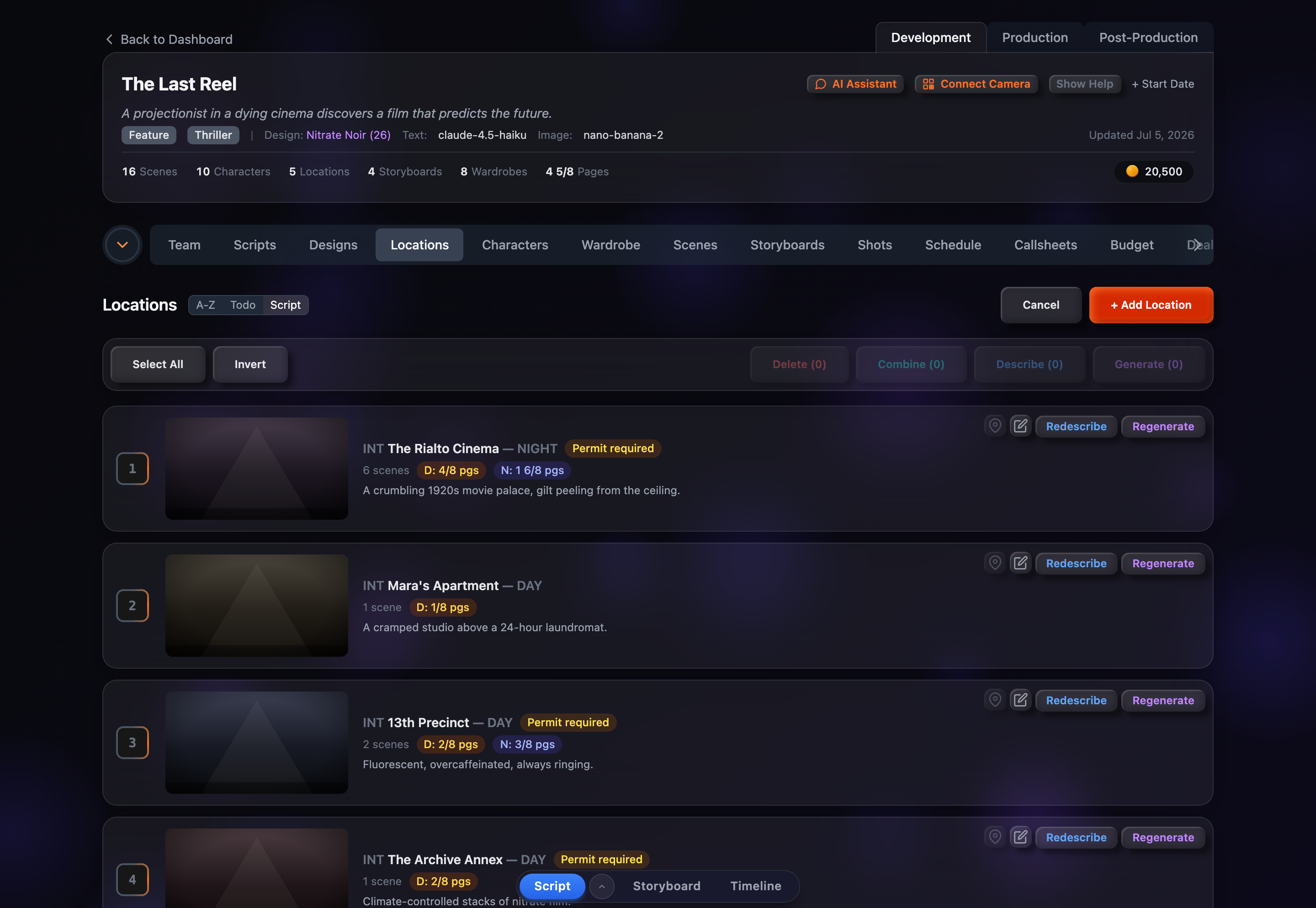
Select All / Deselect
Checks every location in the list; once everything is checked the button flips to Deselect to clear it.
Invert
Flips the selection — checked rows become unchecked and vice versa.
Delete (count)
Soft-deletes every selected location at once. A confirmation step runs first, and deleted locations can be restored later via Show Deleted.
Combine (count)
Merges the selected locations into one. Needs at least two selected; the dialog lists each location’s name and scene count so you can choose which one to keep.
Describe (count)
Auto-writes descriptions for the selected locations that don’t already have one. The button shows live progress (e.g., “Describing 2/5…”) while it runs.
Generate (count)
Generates landscape establishing-shot portraits for the selected locations in parallel. It stays disabled while a generation is already in flight.
Delete, Describe, and Generate need at least one location selected; Combine needs two or more.