 cinemasetfree.com
Browsing & Sorting Locations
Sort locations A–Z, by Todo (completion), or by Script order. Each row shows a landscape thumbnail, an INT./EXT. prefix, scene stats, and a permit badge. When a location has been deleted, a Show Deleted toggle appears so you can review and restore it.
The Locations List
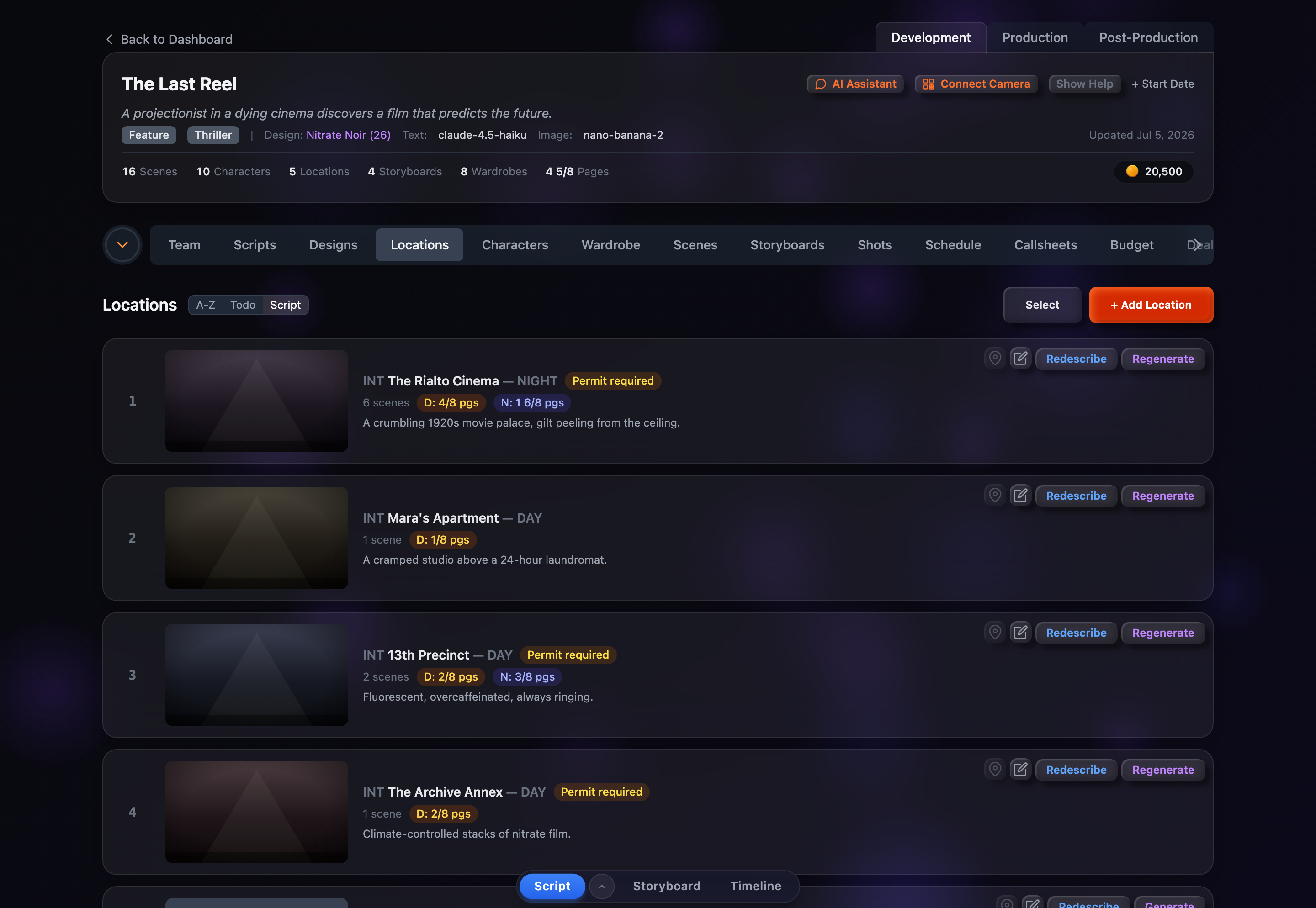
Anatomy of a Location Row
Each row in the Locations tab displays:
- Portrait thumbnail — A landscape establishing shot, or a placeholder showing the location’s initial when no portrait exists
- Name — With a grey INT./EXT. prefix and a grey time-of-day suffix drawn from the scenes (e.g., “INT. The Rialto Cinema — NIGHT”)
- Permit badge — A yellow “Permit required” pill when the location is flagged as needing a permit
- Address — Shown beneath the name when one is saved
- Scene stats — Scene count plus day/night page-eighth badges (e.g., “5 scenes” with “N: 1 6/8”)
- Description — Click to edit inline
- Action buttons — Scout (map pin), Edit (pencil), Describe/Redescribe, and Generate/Regenerate
Sort Options
Use the sort toolbar in the header to reorder the list. Your choice is remembered across sessions.
Script
Orders locations by their first scene appearance, so the ones that show up earliest in the script come first.
A–Z
Alphabetical by name. Click again to flip to Z–A.
Todo
Ranks locations by how complete they are, floating the ones still missing a description or portrait to the top so you can fill the gaps. Click again to reverse the order.
On narrow screens the sort choices, Show Deleted, and Select all live under an Options dropdown instead of separate buttons.
Show / Hide Deleted
Deleting a location is a soft delete — the record is hidden, not destroyed. Once at least one location has been deleted, a Show Deleted toggle appears in the header. Turn it on to list the deleted locations: each shows a red “Deleted” badge and an individual Restore button that brings it back. Turn the toggle off (or restore the last one) to return to the normal list.