 cinemasetfree.com
Creating & Assigning
Click New Errand to open the form, fill in a title and address (both required), optionally pick an assignee, a due time, and notes, then hit Create Errand. The same form reopens when you Edit an existing errand, and Delete asks for a confirmation before removing it for good.
Opening the Form
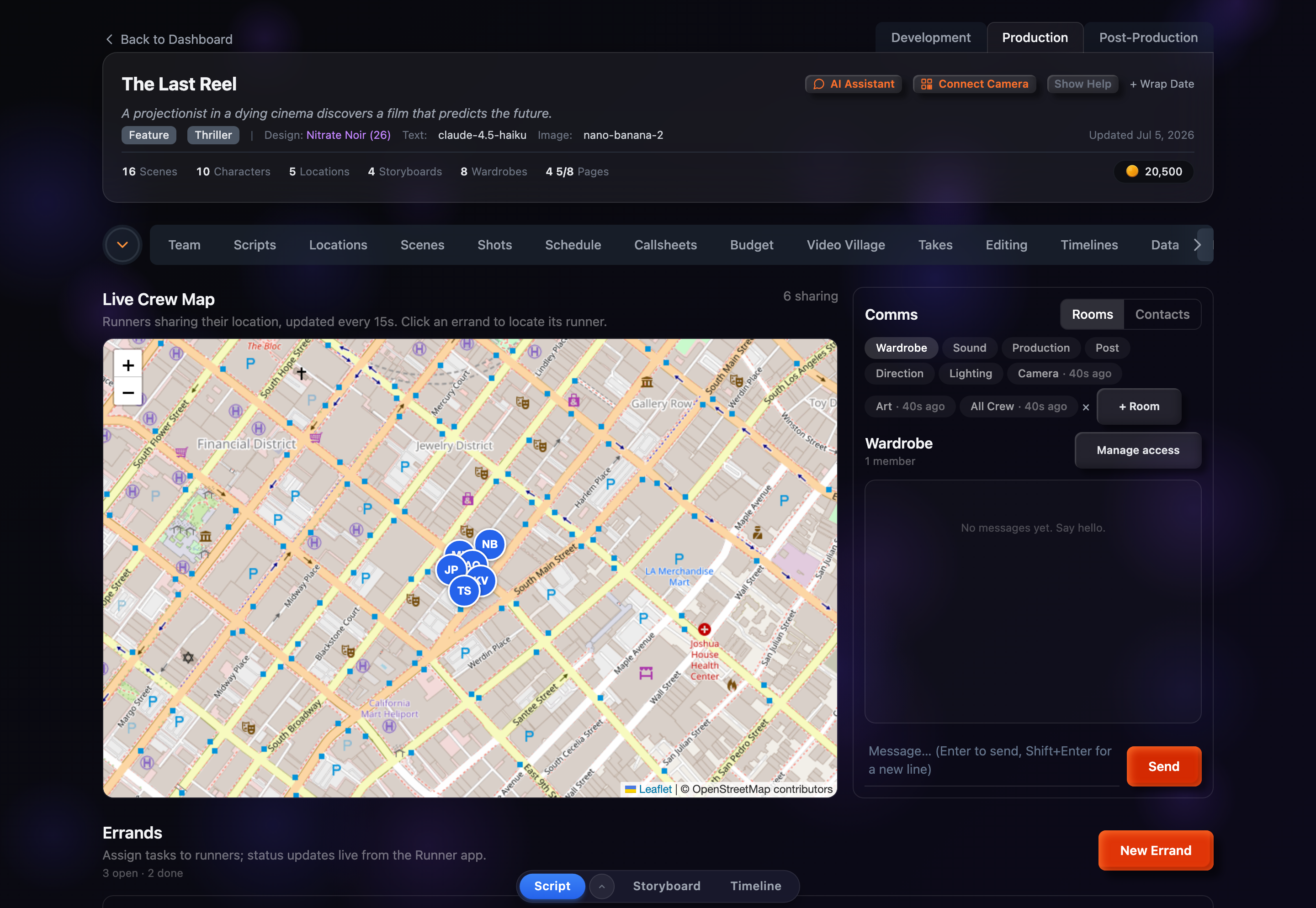
The New Errand button sits in the top-right corner of the tab. Clicking it opens a create form inline above the board. Every errand is created here — there’s no bulk import — and the same form is reused for edits, where it simply opens pre-filled with the errand’s current values. You can back out at any time with Cancel.
The Fields
The form has five inputs:
Title required
What the runner needs to do — e.g. “Pick up lenses.” This is the headline on the errand card.
Address required
Where to go — e.g. “123 Main St, Los Angeles, CA.” It shows on the card next to a pin.
Assignee
Who runs it, chosen from your team roster. Leave it on Unassigned to create the errand first and hand it off later.
Due
An optional date and time. It’s stored in your local zone and drives the overdue flag on the board.
Notes
A free-text field for anything the runner should know — a contact name, a gate code, what to ask for at the counter.
Assigning to a Runner
The Assignee dropdown lists everyone on your project roster, each shown as their name and role — for example “Sam Rivera — PA.” Pick one to put the errand on their plate, or leave it Unassigned. If a roster member hasn’t paired a device yet, their name is tagged “(not on app),” and choosing them surfaces a small amber warning:
“Won’t appear in the Runner app until they pair a device.”
You can still assign it — the errand is saved and will show up for them once they’re on the app — but they won’t see it on their phone in the meantime.
Editing an Errand
Every errand card has an Edit button. It reopens the same form, pre-filled with the errand’s current title, address, assignee, due time, and notes, so you can change any field and hit Save. Editing an errand doesn’t move it between columns — use the status controls on the card for that (see Tracking Status).
Deleting an Errand
The Delete button on a card removes the errand. Because that can’t be undone, it first pops a confirmation — “This errand will be permanently deleted.” — and only removes it once you confirm. There’s no trash or restore for errands, so delete is final.
If Something Won’t Save
If you try to save without a title or an address, the form blocks you with “Title and address are required.” If the save reaches the server but doesn’t go through, you’ll see “Couldn’t save the errand.” instead — your inputs stay in the form so you can try again. And if the board itself can’t load, a “Couldn’t load errands.” notice appears; it retries on the next 15-second refresh.