 cinemasetfree.com
Moving Strips
TL;DR — Drag strips between days, reorder them within a day, drag strips to and from the unscheduled pool, and drag whole days to rearrange the shoot. Everything saves automatically.
The Drag Surfaces
Every strip card is draggable, each day is a drop zone (an empty day shows “Drop strips here”), and the dashed Unscheduled pool at the bottom holds strips waiting to be placed. The six-dot handle on a day header lets you drag the entire day.
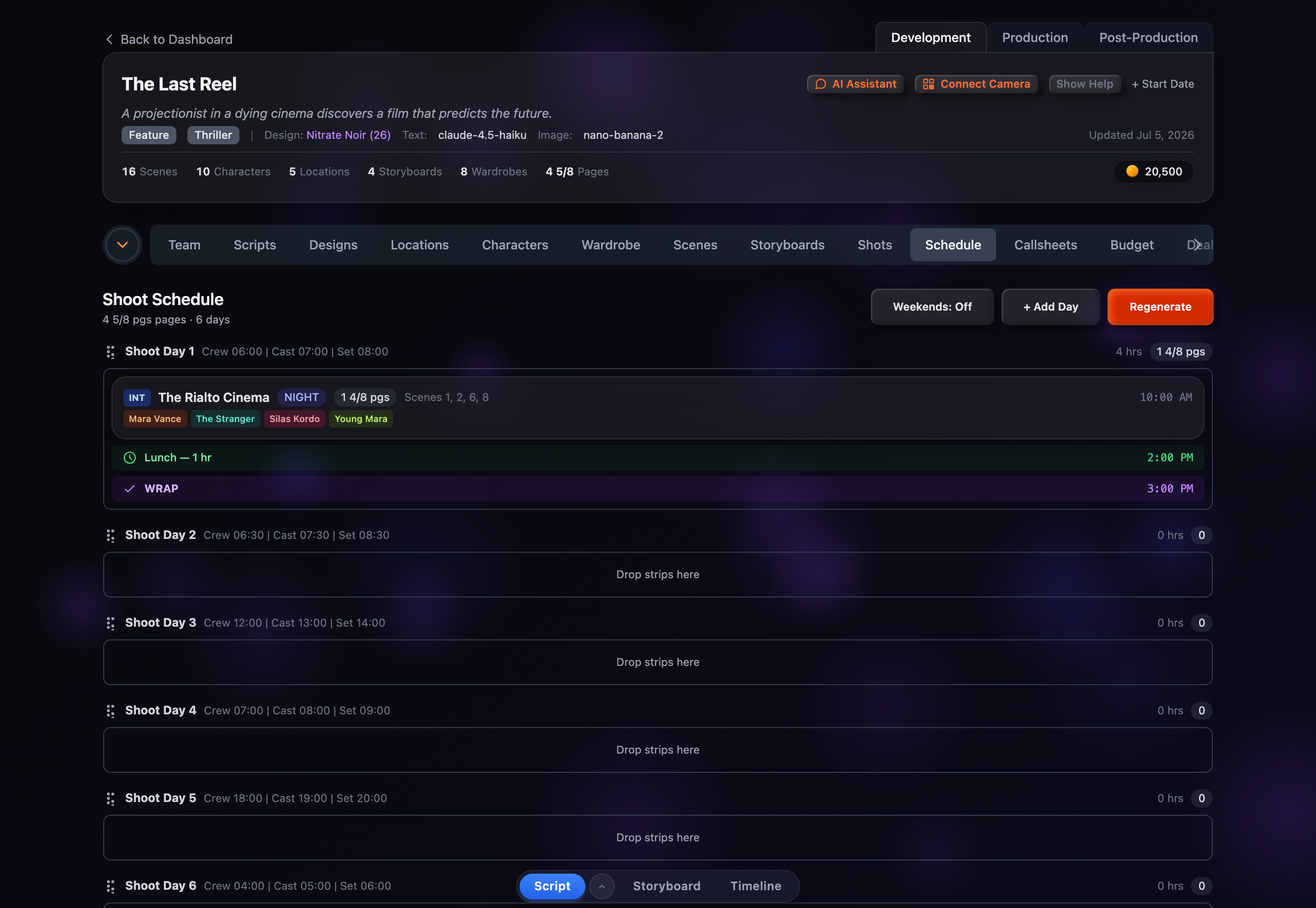
Move a Strip to a Different Day
Grab any strip card and drag it onto another day. A blue indicator line shows exactly where it will land. Drop to place it — the board updates instantly, and page counts and time estimates recalculate for both the source and destination days.
Reorder Strips Within a Day
Drag a strip up or down within the same day to change the shooting order. The blue line marks the new position, and the timeline shifts — earlier strips get earlier start times and everything downstream adjusts automatically.
Schedule and Unschedule
Drag a strip out of the Unscheduled pool (the dashed-border area below your days) into a day to schedule it. Drag a strip out of a day and drop it back into the pool to unschedule it. Strips in the pool are faded so you can tell scheduled from unscheduled work at a glance.
Reorder Days
Grab the drag handle (six dots) on a day header and drag it up or down. Days auto-renumber to match their new order, and if your project has a start date, the auto-computed dates shift to follow.
Everything Saves Automatically
Every drag operation is saved in the background — there’s no save button. If a save fails, a toast notification lets you know. Just drag and drop.