 cinemasetfree.com
Managing Shoot Days
TL;DR — Add empty days, click a day header to edit its date and call times inline, toggle weekends, and let auto-dating fill the calendar from your project’s start date.
The Day Header
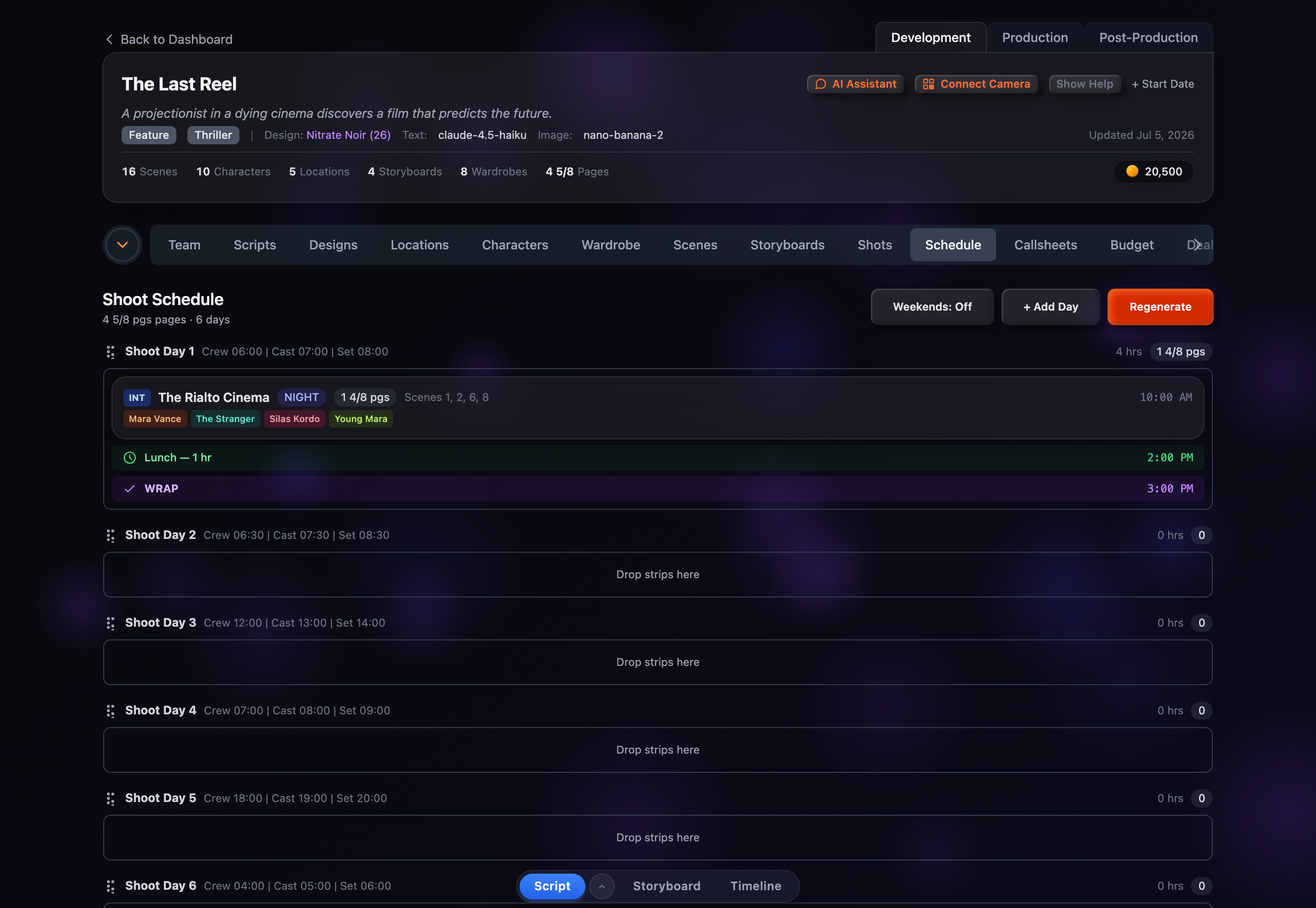
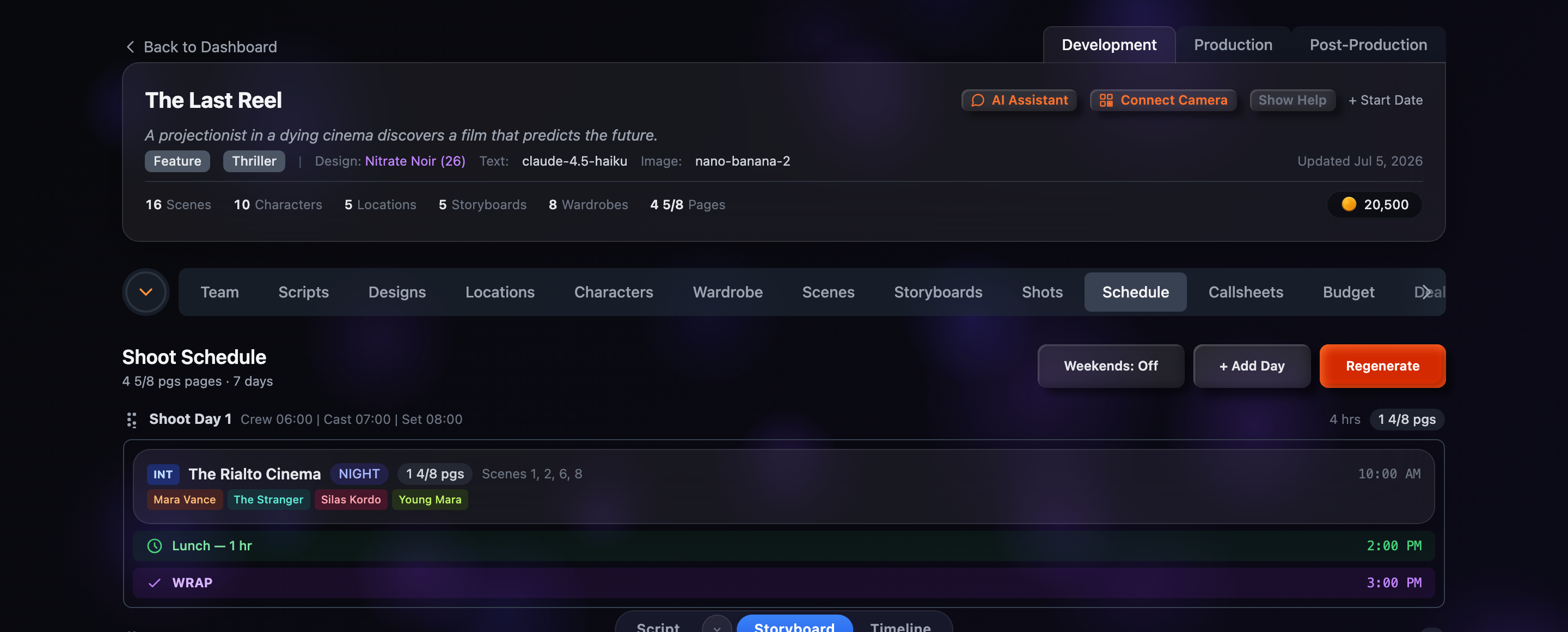
Each shoot day shows a header with its day number, its date (once one is available), any call times you’ve entered, an hours estimate, and a page-count badge. A six-dot handle on the left lets you drag the day to reorder it, and clicking the header opens the inline edit form.
Adding a Day
Click + Add Day in the toolbar to append an empty shoot day to the bottom of the schedule. Then drag strips into it from other days or from the unscheduled pool. On mobile, + Add Day lives in the Actions menu.
Editing a Day
Click any day header to expand an inline form. Set the date, crew call, cast call, on-set time, first shot time, and notes. Call times are free-text (type them as HH:MM, e.g. 06:00). Press Enter or click away to save; press Escape to cancel.
The first shot time anchors that day’s timeline — change it and every strip’s estimated start time shifts accordingly.
Removing or Emptying a Day
There’s no per-day delete button in the Schedule tab. To empty a day without removing it, drag its strips onto another day or into the unscheduled pool — the empty day stays in place as a placeholder. To rebuild the whole day breakdown from scratch, use Regenerate, which clears every day and repacks your strips.
Setting Dates
Dates are computed from your project start date, which you set on the project header (the “+ Start Date” control in the Development stage), not in the Schedule tab itself. Once a start date exists, each shoot day is assigned a sequential date. When Weekends is off, dating skips Saturdays and Sundays — days jump from Friday to Monday. You can override any single day’s date using the Date field in its inline edit form.
The Weekends Toggle
The Weekends button in the toolbar switches auto-dating between skipping and including weekends. It’s off by default, and lights up with a blue ring when on. Toggling it re-dates the schedule immediately and saves in the background.
Page Counts
Pages are shown in eighths — the film-industry standard. “3 1/8 pgs” means 25 eighths of a page. Each day header also shows an hours estimate derived from its total page count (eighths × 20 minutes ÷ 60).
The Unscheduled Pool
Strips that aren’t assigned to any day collect in a dashed-border section below your shoot days, labelled Unscheduled. They’re faded to set them apart from scheduled work. Drag them into a day whenever you’re ready to schedule them.