 cinemasetfree.com
Browsing & Sorting Scenes
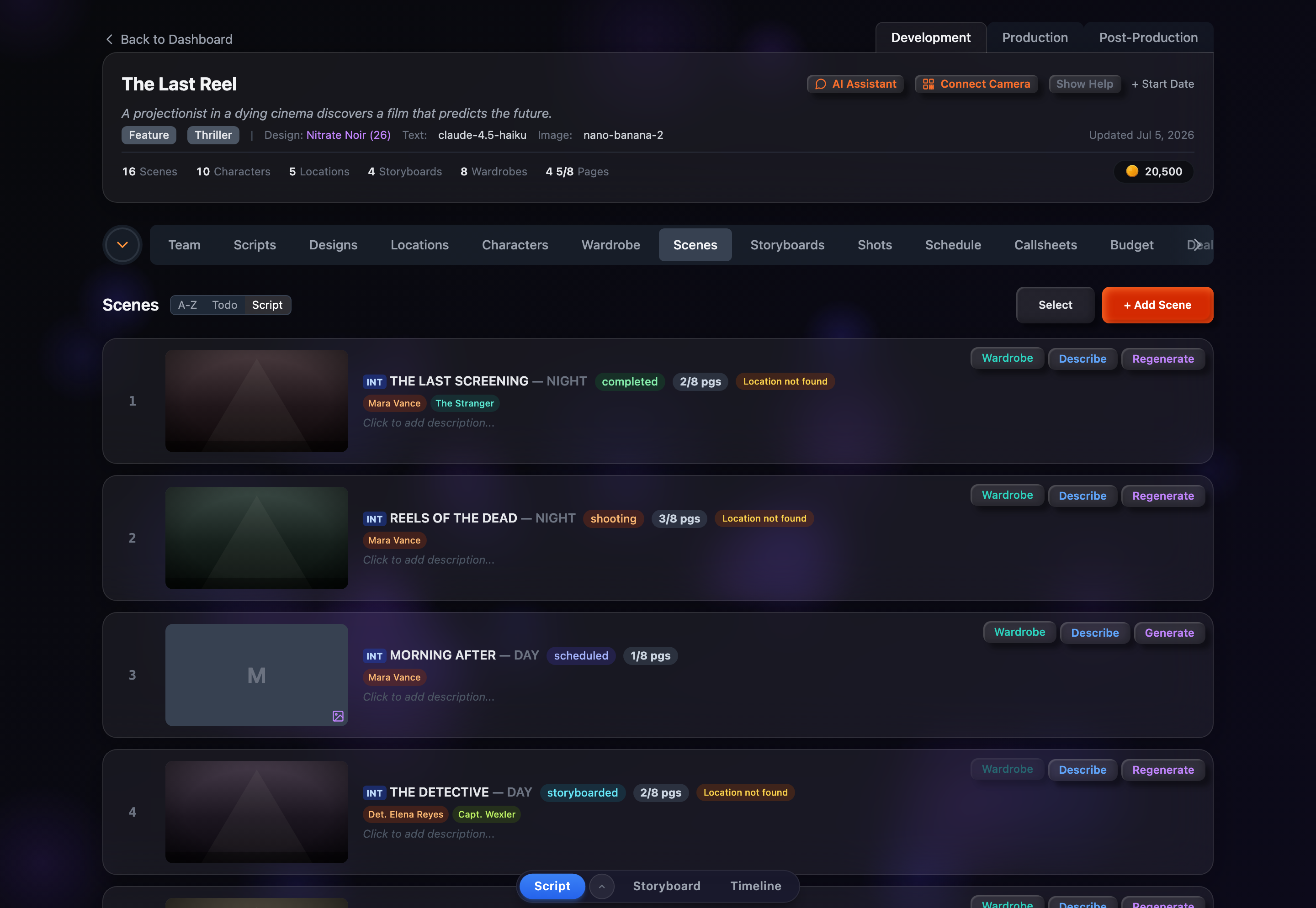
Each scene row shows a 16:9 landscape thumbnail, setting tag, title, time of day, status badge, page count in eighths, character pills, and per-row buttons. Sort by A→Z, completion, or script order, and — once any scene has been deleted — toggle deleted scenes on or off.
Row Anatomy
Each scene row packs a lot of information into one line:
- Scene number — Shown in the left margin on desktop; click it to jump straight into select mode with that row checked
- Portrait thumbnail — A 16:9 landscape establishing shot (200×112 on desktop). If none exists yet, the tile shows the scene’s first initial with a small image icon
- Setting tag — A color-coded INT or EXT badge before the title
- Title — Displayed in uppercase
- Time of day — Gray text after the title (e.g. DAY, NIGHT, DAWN)
- Status badge — A color-coded production status, shown when it isn’t not-started
- Page count — A slate pill measured in eighths (e.g. “3 1/8”)
- No location — An amber badge appears when a scene has no location linked (or its location name doesn’t match one in your Locations), a reminder that location reference images won’t be used during generation
- Character pills — Colored tags for each character in the scene
- Description — Editable inline, or a “Click to add description...” placeholder when empty
- Wardrobe (teal) — Shown when the scene has characters; opens the per-scene wardrobe tooltip
- Describe (blue) — Auto-generate a visual description; reads Redescribe once one exists
- Generate (purple) — Generate the establishing shot; reads Regenerate once a portrait exists
Deleted rows appear dimmed with a red “Deleted” badge and a green Restore button in place of the usual per-row buttons.
Sort Options
Use the sort buttons next to the “Scenes” heading to reorder rows. On smaller screens the same choices live under the Options dropdown.
A→Z / Z→A
Alphabetical by scene title. Click again to flip between ascending and descending.
Completion
Least-finished scenes first — those missing a description or portrait float to the top so you can see what’s left. Click again to reverse.
Script (default)
Native screenplay order — the sequence scenes were imported in. This is how the list is sorted until you choose otherwise.
Your choice is remembered between visits.
Show / Hide Deleted
A Show Deleted button appears in the toolbar only once at least one scene has been deleted. Toggling it on swaps the list to show your soft-deleted scenes and highlights the button with a red ring; toggling it off returns to the live list. Deleted rows are dimmed and carry a red “Deleted” badge with a green Restore button to bring them back.