 cinemasetfree.com
Adding & Editing Scenes
Scenes are usually auto-created from script import. Use + Add Scene for supplementary scenes, click a row’s description to edit it inline, tap Describe to have the AI write a visual description, and use the Wardrobe button to override a character’s costume for a single scene.
Adding a Scene
Click the + Add Scene button at the top right of the Scenes tab to open the inline add form. It has two fields:
- Scene # (required) — e.g. “1” or “2A”
- Title (optional) — saved and displayed in uppercase
Press Save to append the scene to the list, or Cancel to dismiss the form.
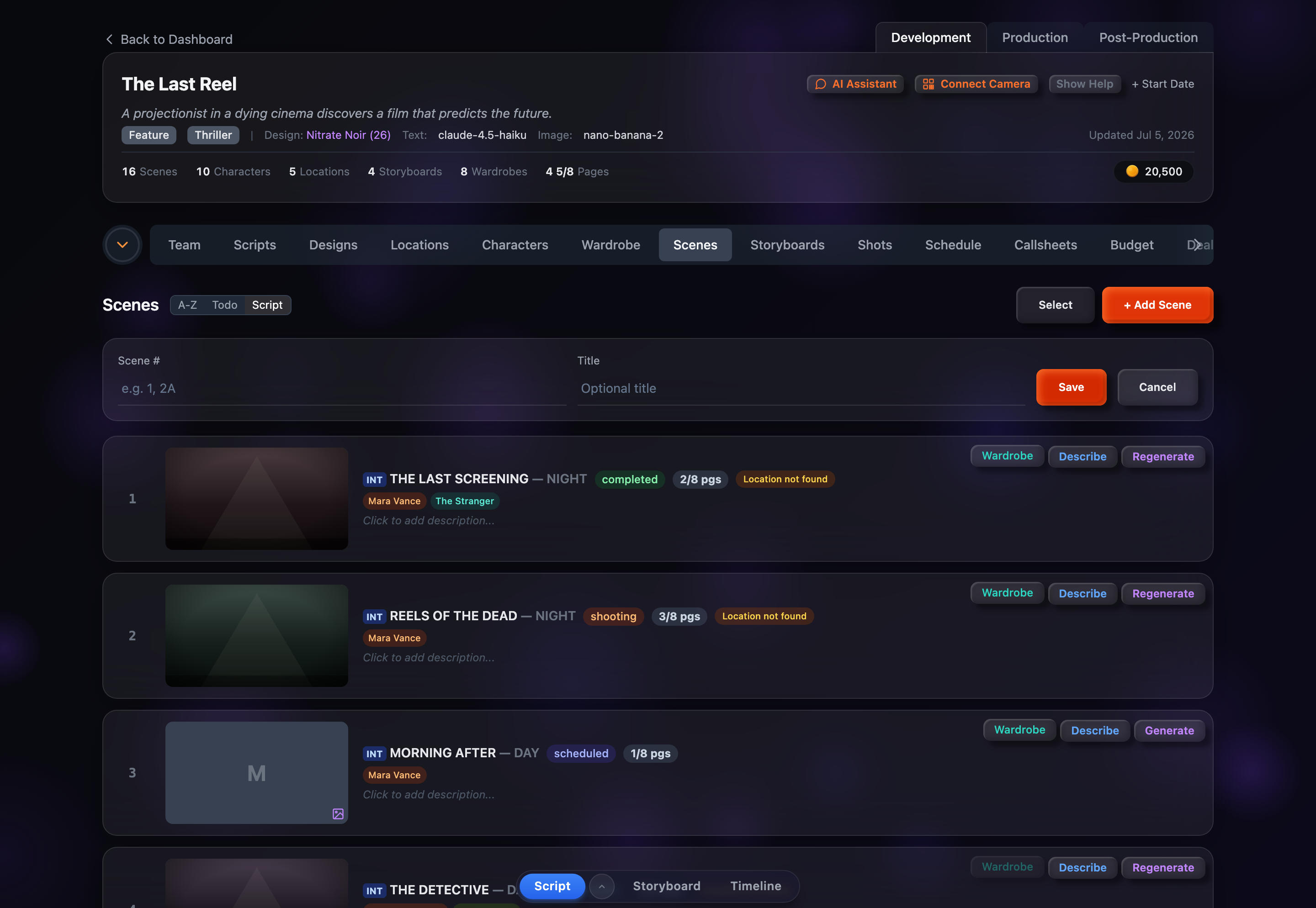
Most scenes arrive automatically when you import a screenplay, so manual add is mainly for pickups, inserts, and establishing shots that aren’t written into the script.
Inline Description Editing
Click the description text on any scene row — or the italic “Click to add description...” placeholder when it’s empty — to edit it in place. Press Enter or click away to save, or press Escape to cancel. The description is what drives portrait generation, so keeping it accurate pays off when you generate the establishing shot.
Auto-Describe
Every row has a blue Describe button (it reads Redescribe once a description already exists). Clicking it asks the AI to write a visual location description from the scene heading — the setting (INT/EXT), location name, and time of day. The result drops straight into the row’s description and is saved to the scene, ready to use as the portrait prompt. The button spins while it works, is disabled while that scene’s portrait is generating, and the operation uses credits.
Per-Scene Wardrobe
When a scene has characters, its row shows a teal Wardrobe button. It stays disabled until at least one of those characters has more than one wardrobe to choose from — if it’s greyed out, the hover tip points you to add more wardrobe choices in the Wardrobe tab. Clicking it opens a small tooltip below the button where you can:
- See each character in the scene with a wardrobe dropdown (and a thumbnail of the currently assigned costume)
- Pick any wardrobe belonging to that character, or choose “— none —” to clear the override
- Spot the character’s default costume by its “(default)” label
The wardrobe you pick here overrides the default for this one scene only — other scenes keep using the character’s default.
Which characters appear?
The character pills on a scene come from script import and are managed in the Characters tab — they aren’t edited directly on the Scenes tab.