 cinemasetfree.com
Video Village Overview
Video Village turns your project dashboard into a live on-set monitor. Phones and cameras running the Cinema Set Free app pair to your project by scanning a QR code, then stream their video straight to the tab — so you can watch every angle in one grid, remotely switch each device between off, live, and record, and capture takes without touching the camera. It’s a Production-stage tab and needs a Pro plan.
What Is Video Village?
Video Village is the on-set monitoring tab in your project dashboard. The browser you open it in acts as the monitor (or “village”), and any number of phones or cameras running the Cinema Set Free app connect to it as live cameras. Each camera streams its picture to the monitor over a direct peer-to-peer video connection, so the director, DP, or script supervisor can watch all the feeds side by side on one screen.
The Monitor and the Cameras
There are two sides to Video Village:
The Monitor
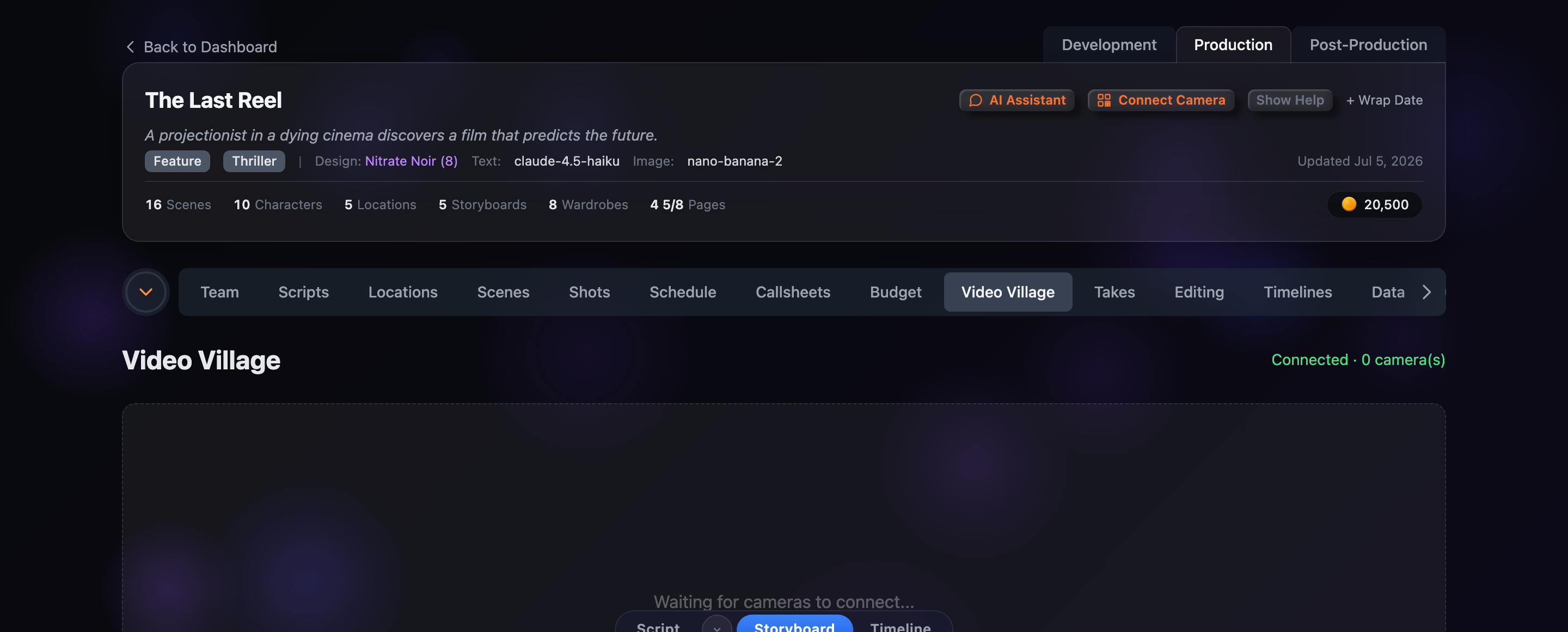
The Video Village tab itself. It joins your project’s live room as the viewer, shows a status readout (“Connecting…” or “Connected · N camera(s)”), lays out every connected camera in a grid, and hosts the floating control panel.
The Cameras
Phones and cameras running the Cinema Set Free app. After scanning the pairing QR they appear on the monitor by device name and stream their live picture, along with the shot label, camera angle, and take number they’re set to.
The Empty State
Before any device connects, the tab shows a dashed placeholder that reads “Waiting for cameras to connect…” with the prompt to scan with the Cinema Set Free app to stream and a pairing QR code underneath. The status in the top-right corner reads Connected · 0 camera(s) once the monitor has joined the room. As soon as a phone pairs, the placeholder is replaced by that camera’s live tile.
Where It Fits
Video Village lives in the Production stage of your project and is a Pro feature — on a free plan the tab shows a Pro badge and an upgrade prompt instead of the monitor. It ties together two other Production tools: