 cinemasetfree.com
The Dispatch Console
Track your runners on a live map, talk to the whole crew, and hand out address-based tasks — all from one screen.
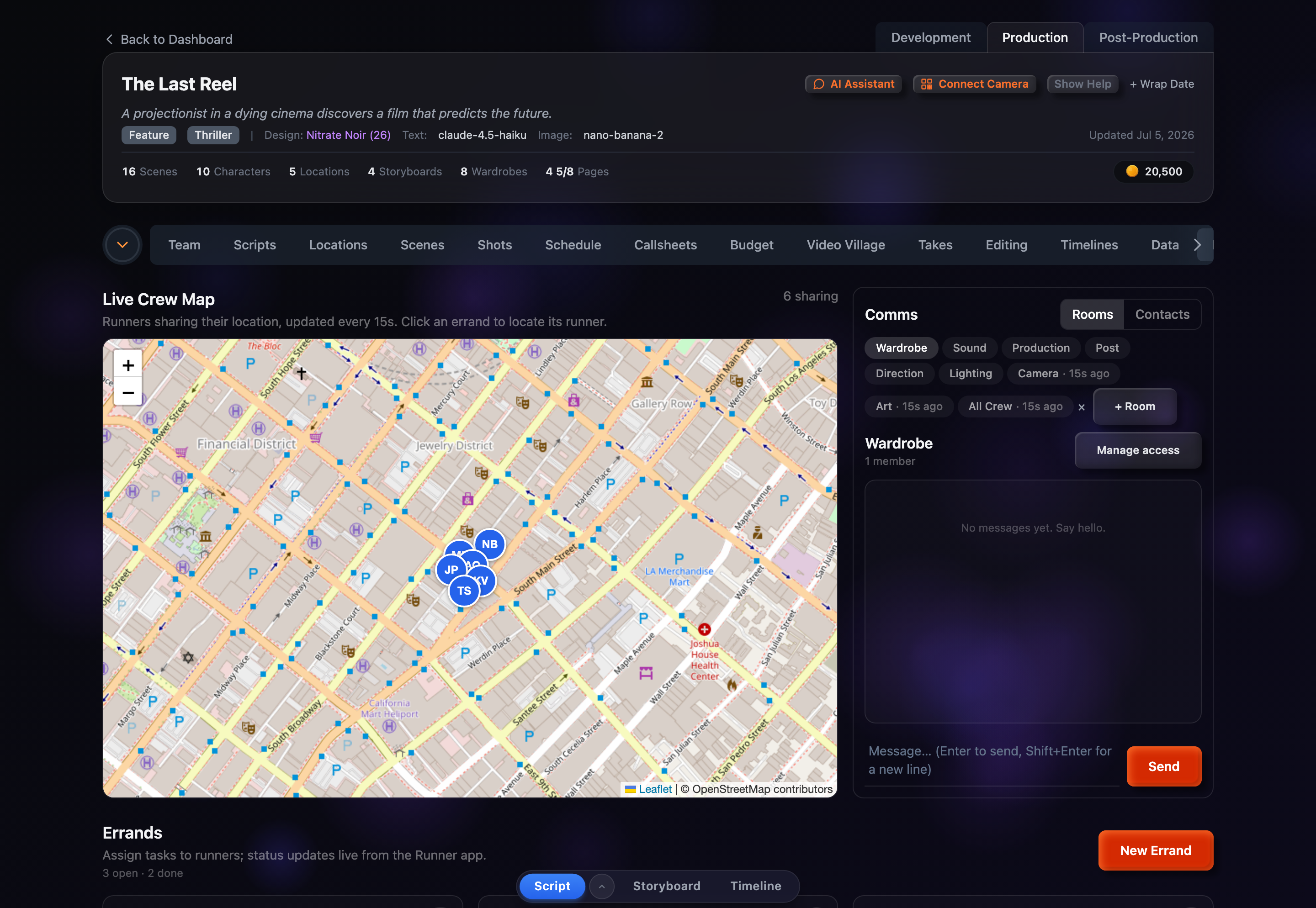
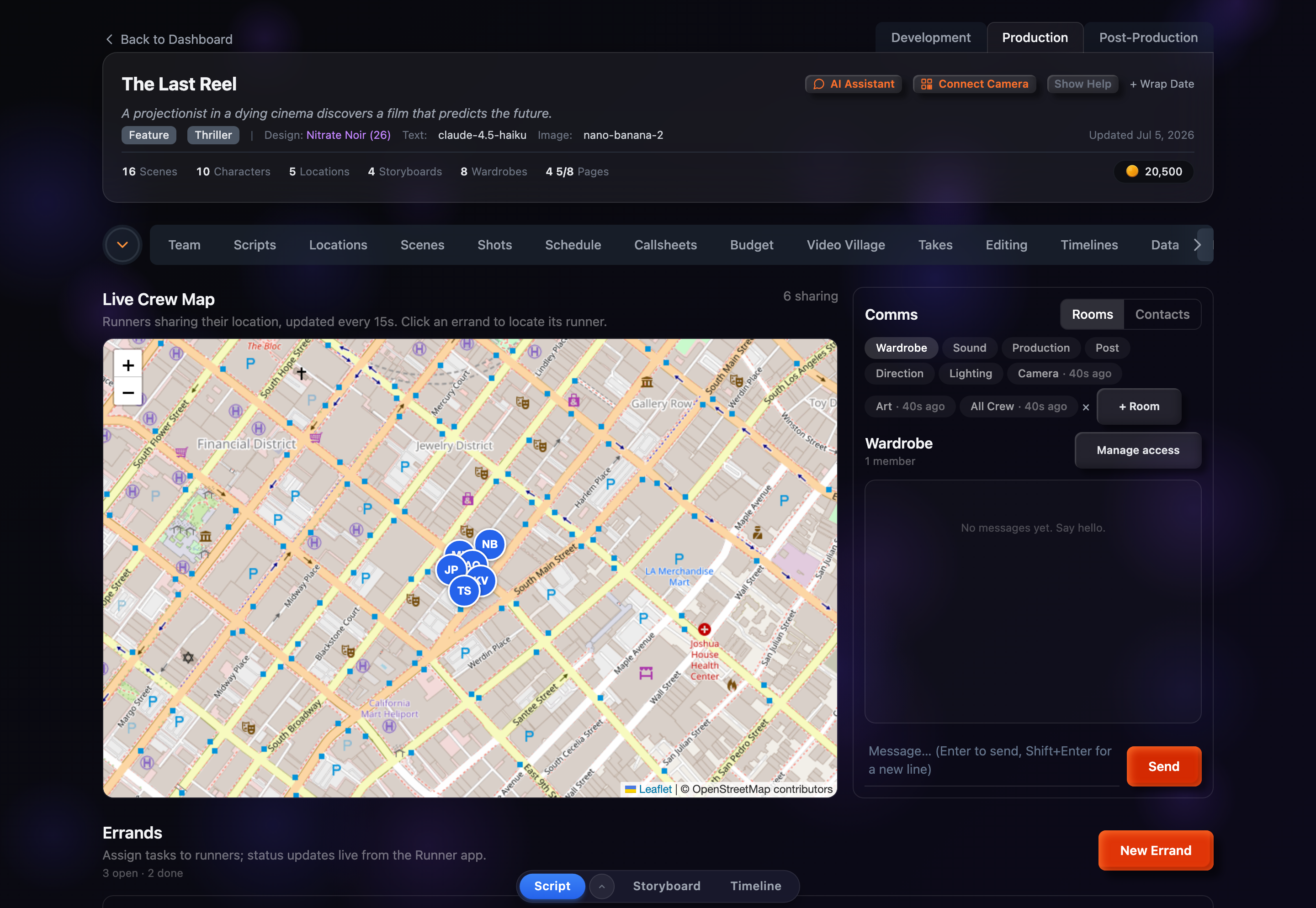
The Errands tab is a dispatch console. The top half pairs a live crew map — every crew member who shares their location from the mobile app appears as a pin, refreshed every 15 seconds — with crew comms, your department chat rooms and message threads. The bottom half is the errands board. The three work together: click Locate on any assigned errand and the map jumps to that runner’s live position. It’s a PRO feature in the Production stage.
Everything in one screen
When a project is in production, coordinating runners means answering three questions at once: where is everyone, how do I reach them, and what still needs doing. The dispatch console puts all three side by side. The live map and comms sit across the top, and the errands board runs full-width beneath them, so you never have to switch tabs to dispatch a runner and follow them to the drop-off.
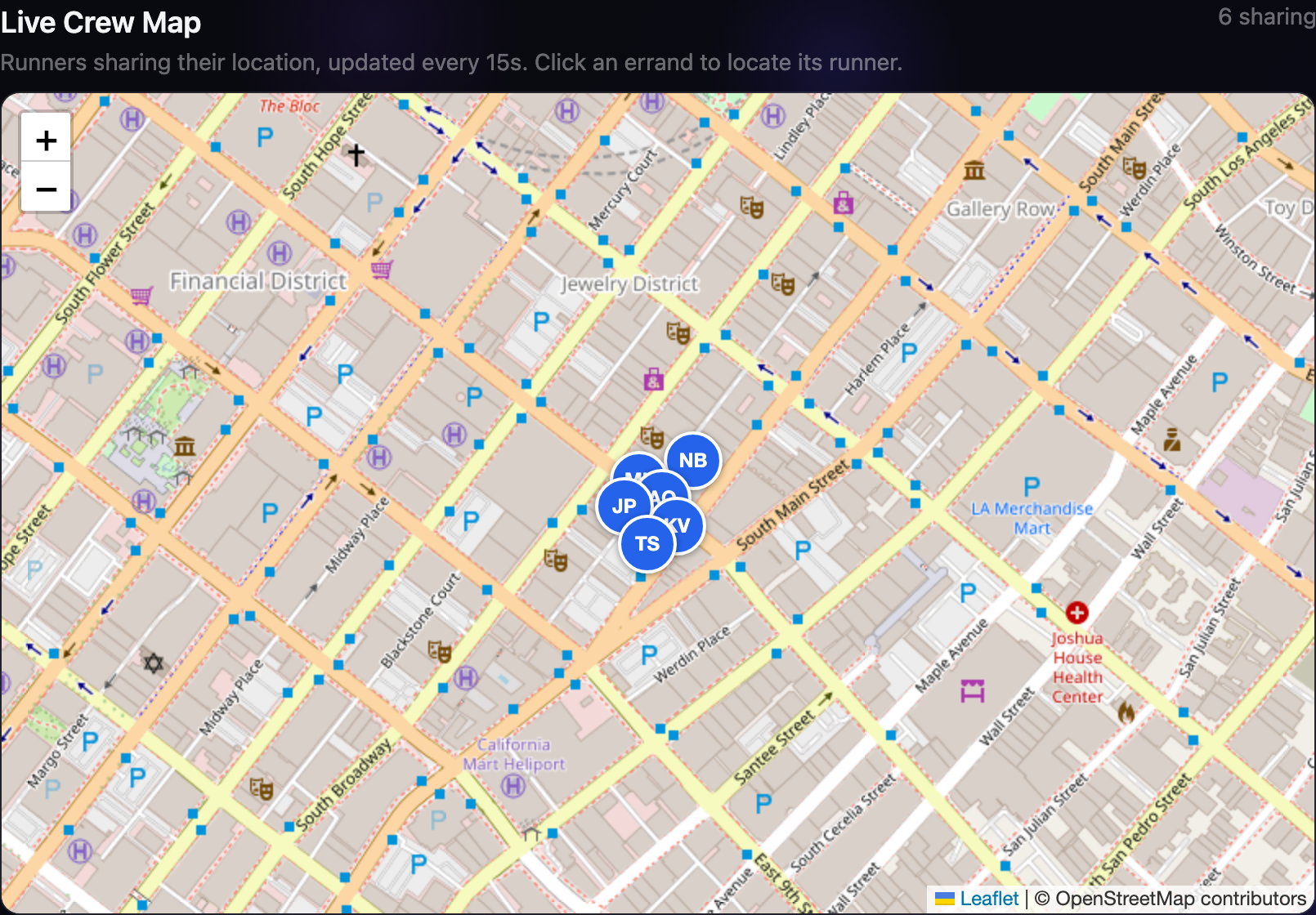
The live crew map
The map plots every crew member who has turned on location sharing in the mobile app’s Runner, each as a labelled pin with their initials. The header shows how many people are currently sharing, and positions refresh on their own every 15 seconds — the same cadence the phones report at, so what you see is effectively live. Click a pin to see who it is, their role and department, when they last updated, and their battery and speed. If nobody is sharing yet, the map shows a hint explaining that crew can switch it on from the Runner.
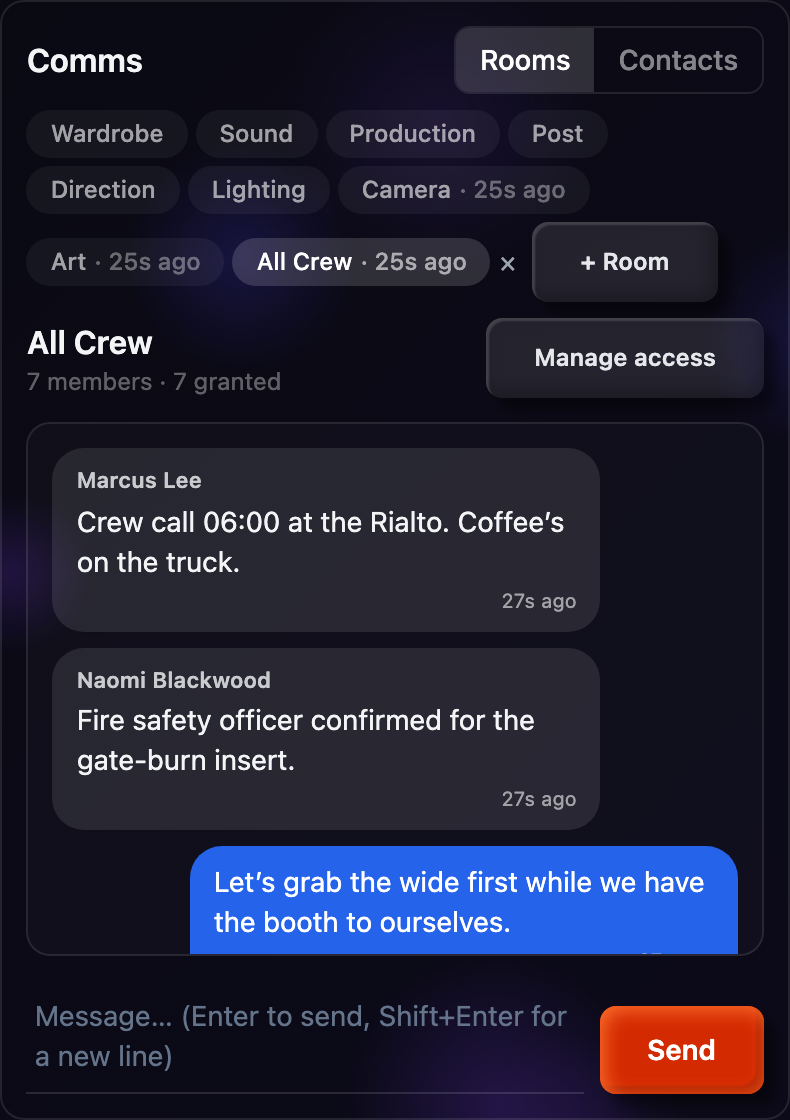
Crew comms, right beside the map
The comms rail carries your Rooms and a Contacts sheet. Each department gets a room automatically, and you can add custom rooms with + Room. Pick a room from the chips along the top to open its message thread; type in the composer and press Enter to send. When new messages arrive while you’re on another room or the window is in the background, a “New messages” divider marks where you left off, and rooms with unread messages show a small dot on their chip so nothing gets missed.
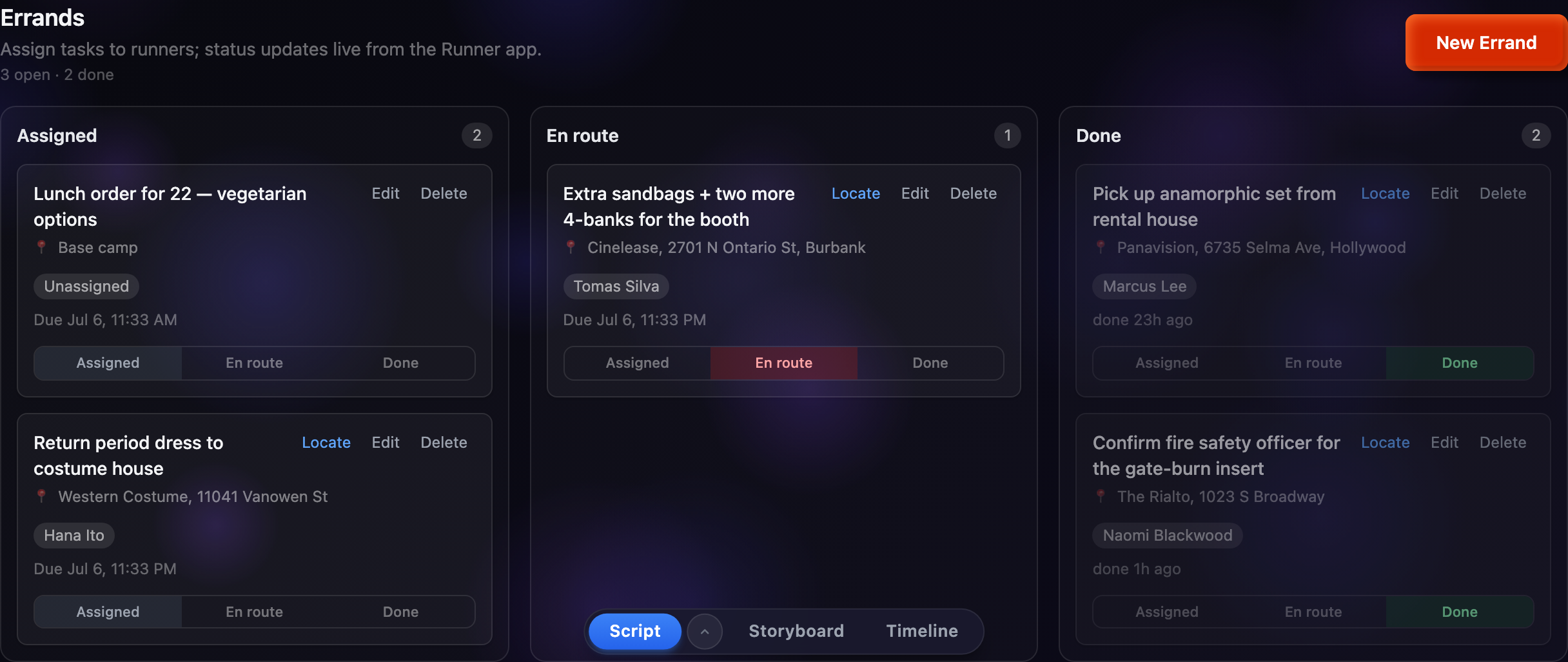
The board, wired to the map
Below the map and comms is the familiar errands board — Assigned, En route, and Done. Each card shows the task, its address, the assignee, and a due time, with a segmented control to move it between columns. Assigned cards also carry a Locate link: click it and the map flies to that runner’s live position and opens their pin, so you can watch a lens pickup or a wardrobe return happen in real time. If the assigned runner isn’t sharing their location, you’ll get a gentle nudge instead.
Handing out a new errand
Click New Errand to open the form. Give it a title and an address (the only required fields), then optionally pick an assignee from your team roster, set a due time, and add notes the runner should know. If you assign someone who hasn’t paired a device yet, the form warns that the errand won’t appear in their Runner app until they do. Once you create it, the errand lands in the Assigned column and — if the assignee is sharing location — is one Locate click away on the map.
Where it lives
The dispatch console is the Errands tab in a project’s Production stage. Crew Map and Comms used to be separate tabs; they now live here together, because tracking runners, talking to them, and dispatching them are really one job. As a PRO Production feature, it appears once your project is in production and your plan includes it.