 cinemasetfree.com
Getting Started
TL;DR — Each storyboard pairs one scene with a production design and breaks it into ordered shot panels. Click an unstoryboarded scene to create one, then browse, sort, filter, and revise your storyboards from the tab.
What Is a Storyboard
A storyboard pairs a single scene from your screenplay with a production design and breaks it into an ordered sequence of panels, each representing one shot. The typical lifecycle is: create the storyboard from a scene, let AI analyze the scene into panels, edit the panels, generate images, and present the result. You reach this tab at Development → Storyboards inside a project.
Creating a Storyboard From a Scene
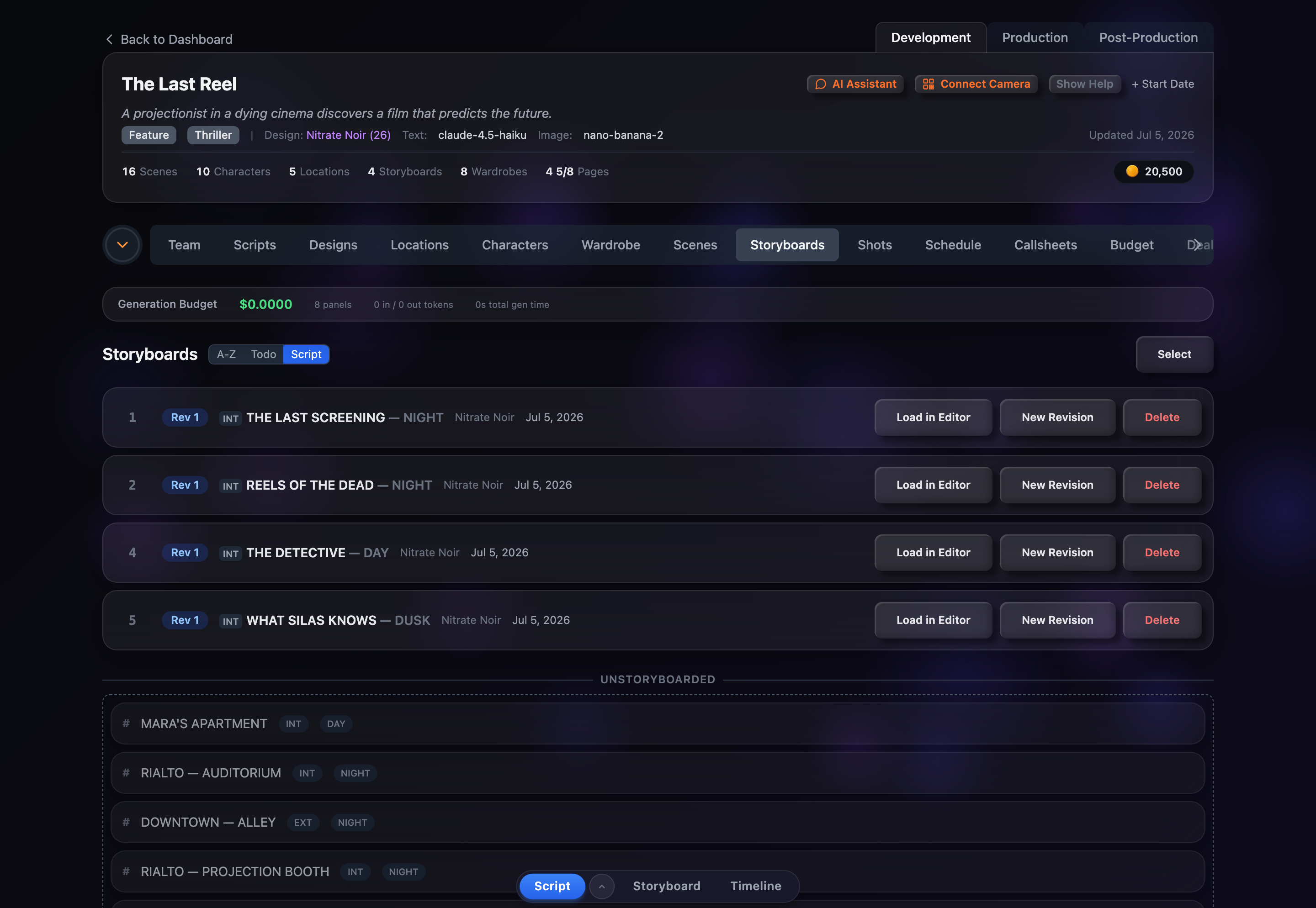
There is no “New Storyboard” button — storyboards are created from scenes. Any scene that doesn’t have a storyboard yet appears under the dashed Unstoryboarded divider at the bottom of the tab, labelled with its scene number and setting. Click a scene there and CSF creates a storyboard for it and opens the editor immediately, ready to analyze.
Browsing, Sorting & Filtering
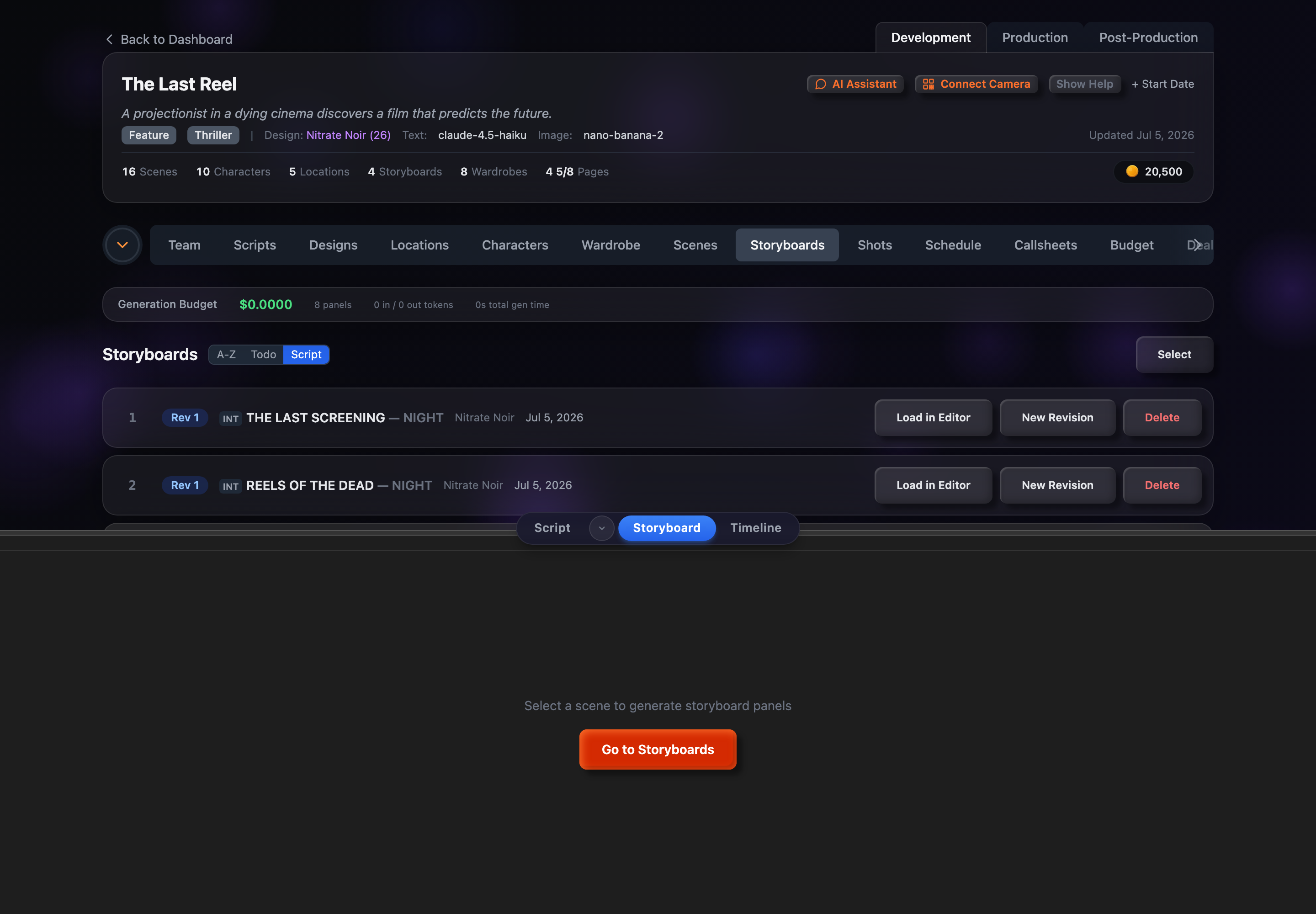
Existing storyboards are listed as rows, each showing its scene number, a coloured Rev badge, the scene heading (with an INT/EXT setting tag and time of day), the production design name, and when it was last updated. Three sort buttons let you reorder the list: A–Z (by title, toggles to Z–A), Todo/Done (by revision number), and Script (screenplay order).
When a project has more than one revision or more than one design in play, extra dropdowns appear: filter to a single revision with All Revs / Rev N, or to a single design with All Designs (which includes the Pen Drawing (Default) option and any named designs).
Generation Budget
Once panels have been generated in the project, a Generation Budget strip appears at the top of the tab. It totals what you’ve spent on image generation for the project, along with the number of panels generated, input/output token counts, and total generation time — a quick way to keep an eye on cost.
Revisions
Click New Revision on any storyboard to clone it — every panel is copied so you can iterate without losing the previous version. Each revision keeps its own coloured Rev badge so you can tell them apart at a glance, and the revision filter lets you focus on just one. Use Load in Editor to reopen a storyboard in the panel editor.
Delete, Restore & Bulk Actions
Deleting a storyboard is a soft delete — click Delete and confirm, and it can be recovered later. When a project has deleted storyboards, a Show Deleted toggle appears; turn it on to see them and click Restore to bring one back. To act on several at once, click Select, tick the storyboards you want, and use the selection toolbar to delete them in bulk.